Helium 10 Review: Turn “Product Research → Keywords → Listing → Profit → Risk Control” into a Repeatable SOP
The longer you sell on Amazon, the more you realize the problem is not a lack of operational skill, but a lack of a decision system. Product research is based on gut feel, keywords on guesswork, listings on keyword stuffing, profit on month-end reconciliation, and risk on damage control after incidents. It might work in the short term, but once you expand or build a product matrix, the cost of trial and error rises fast.
Helium 10 is not a single tool but a full system: keyword research, product research, listing optimization, operational analysis, and risk alerts. Over 30 tools form a cohesive workflow.
This article follows a “practical closed-loop workflow”: start with the lowest barrier to run a diagnostic, then build a keyword system and keyword bank, and finally implement listings, profit analysis, and risk control.
Bottom Line First: Who Benefits Most from Helium 10
Three seller profiles most likely to see ROI:
- Already making sales and ready to expand: higher decision frequency means you need process-based criteria.
- Listings/keywords have been stuck for a long time: a more complete chain from competitor reverse engineering to keyword cleaning and content execution (Cerebro → Magnet → Keyword Processor → Scribbles/Listing Builder).
- Prioritizing profit and risk alerts: Profits breaks down margins with operating metrics; Alerts focuses on 24/7 monitoring and protection for inventory and listings.
The Cheapest Way to Start: Run a Health Check with the Free Chrome Extension
Many reviews start with subscriptions, but the more reliable path is to verify whether the workflow works for you with the free extension.
The Chrome Extension is completely free—no subscription needed. After installing it, product research, keyword analysis, and profit calculation are all available.
Action steps: install the extension → open an Amazon search results page → run Xray for a 3–5 minute health check.
A Workflow Map: Group Tools by “Seller Actions”
- Product research & opportunity validation: Xray + Black Box
- Keyword system: Cerebro + Magnet
- Keyword cleaning & structuring: Keyword Processor (formerly Frankenstein)
- Listing execution & benchmarking: Scribbles + Listing Builder + Listing Analyzer
- Profit & operations review: Profits
- Risk control & anomaly monitoring: Alerts
- Market share: Market Tracker / Market Tracker 360
Part 1: Product Research & Opportunity Validation
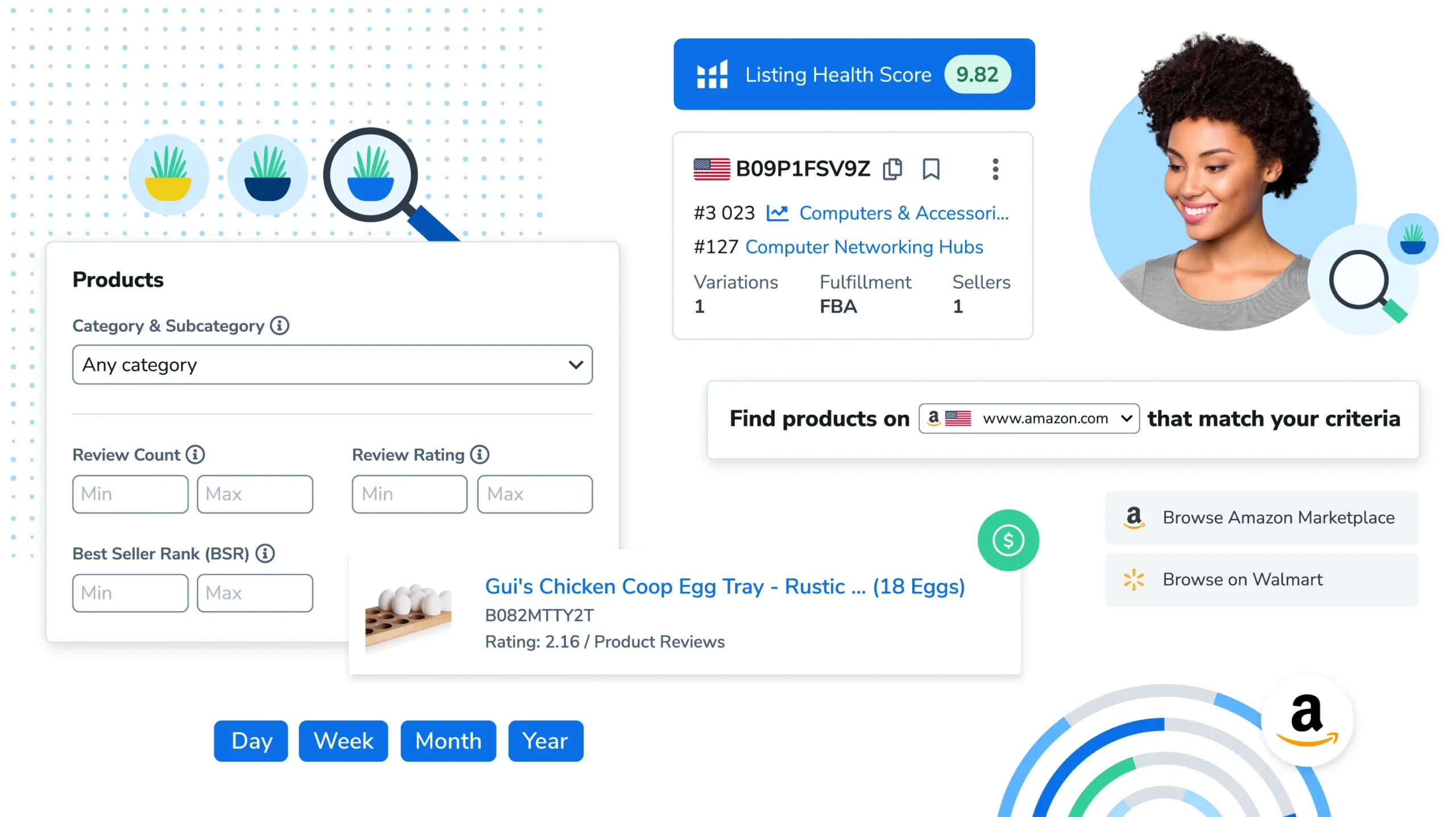
Xray: 3-Minute Health Check for a Niche (Filter First, Then Commit)
Open Amazon search results, click Xray, and the competitive landscape becomes clear at a glance.
How to Read the Core Metrics
| Metric | Meaning | Healthy Reference | Red Flag |
|---|---|---|---|
| Est. Monthly Sales | Estimated monthly sales | Top sellers ≥500, mid-tier ≥100 | Market <50 suggests weak demand |
| Est. Monthly Revenue | Estimated monthly revenue | Used to gauge market size | Top 10 combined <$50k is risky |
| Price | Price range | $15–$50 is beginner-friendly | <$10 thin margin, >$80 high trial cost |
| Review Count | Review volume | Mid-tier <500 has room | Top 10 all 5000+ = high barrier |
| Rating | Star rating | 3.8–4.3 has room to improve | Market 4.7+ = very mature product |
| BSR (Best Seller Rank) | Sales rank | Lower is better, watch category | BSR 50,000+ in large categories = low volume |
The 3-Step Health Check
Step 1: Check crowding
- Are the top results highly homogeneous? If the top 20 look identical, it’s hard for a new product to win with minor tweaks.
- Seller mix: all big brands, or are there mid-size sellers making sales?
Step 2: Check top-tier barriers
- Review count and rating for the top 3 listings
- Focus on 1–3 star reviews—can you solve those pain points?
- If complaints are about “slow shipping” or “damaged packaging,” you can’t fix them; if they’re about “missing features” or “poor material,” you can.
Step 3: Check ad density (experience-based)
- Sponsored tag density on search results
- High density = higher launch cost, more ad budget
- Use Helium 10 Adtomic or other tools to validate CPC
Quick Elimination Checklist
Eliminate immediately if:
- ❌ Top 10 products all sell <100/month (insufficient demand)
- ❌ Top review counts all >3000 (barrier too high)
- ❌ Price band is concentrated at $8–$12 (thin margin)
- ❌ All products are 4.7+ with no common pain points (no improvement space)
- ❌ Clear brand monopoly (7 of top 10 are the same brand)
Output: Candidate list (10 → 3)
- Direction/keyword
- Price band
- One-line differentiation
- Continue? (✅/❌)
Black Box: Mine Candidates with Filters
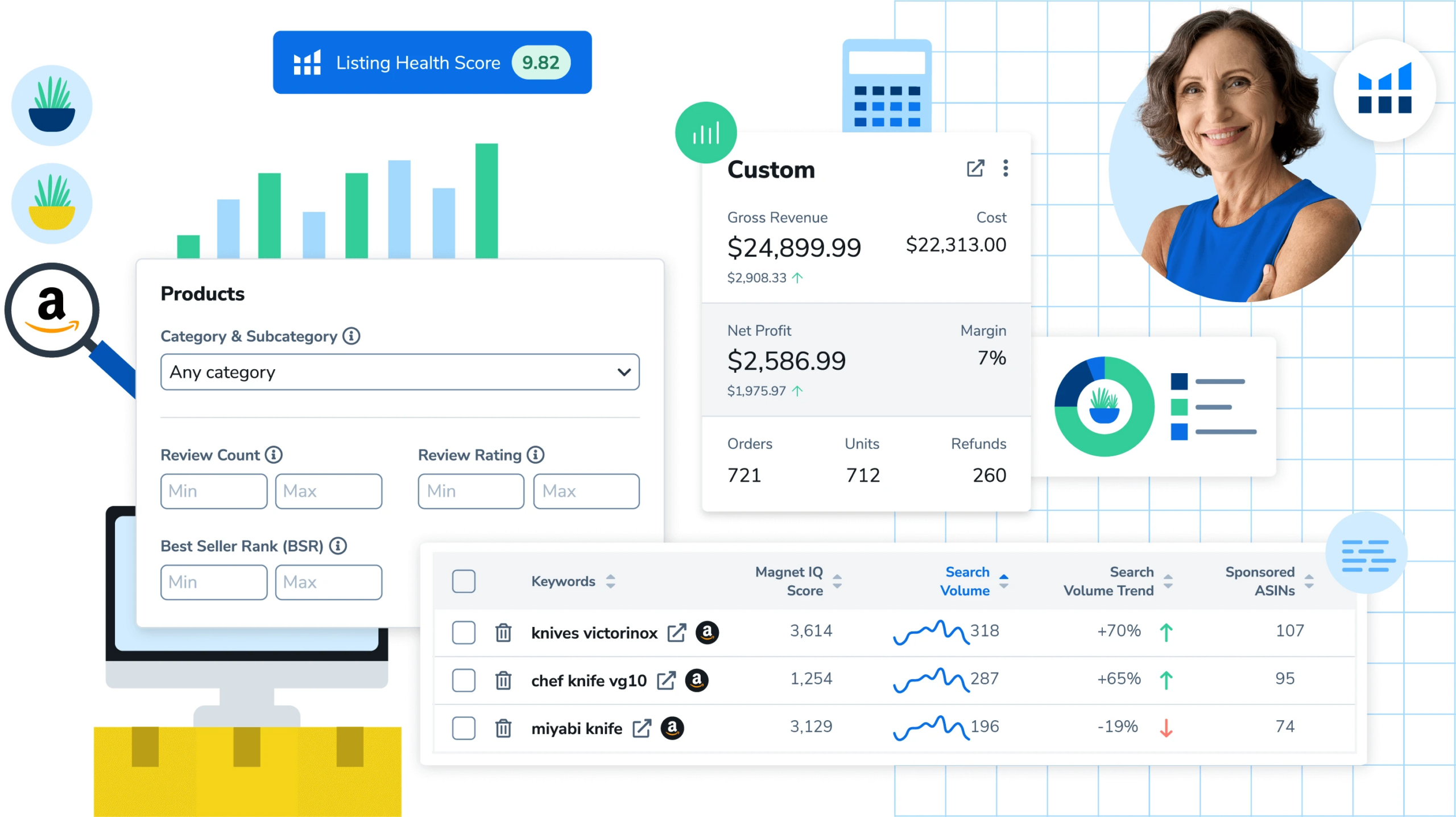
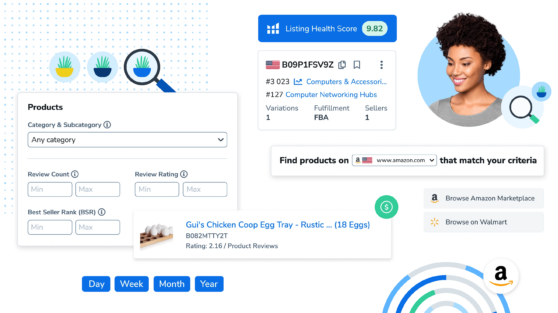
If you don’t have a clear direction, Black Box helps you find opportunities in reverse: set filters for price, monthly sales, review count, etc., let the database surface candidates, then use Xray to validate and filter out false positives.
Four Search Modes
| Mode | Use Case | Core Logic |
|---|---|---|
| Products | Most common, filter at the product level | Set sales, price, review thresholds |
| Keywords | Start from search terms | High volume + low competition |
| Competitors | Study a specific seller’s catalog | Input store or brand name |
| Product Targeting | Find ASINs to target for ads | Competitor weaknesses = your ad opportunity |
Beginner-Friendly Filter Set (Products Mode)
A proven “safe zone” parameter set for beginners:
| Filter | Suggested Range | Why |
|---|---|---|
| Monthly Revenue | $5,000 – $50,000 | Too low lacks volume, too high is crowded |
| Price | $15 – $45 | Enough margin, manageable risk |
| Review Count | 10 – 500 | Demand validated, but not too high barrier |
| Review Rating | 3.5 – 4.3 | Room for improvement |
| Monthly Sales | 100 – 1000 | Confirms real demand |
| Listing Age | 3 – 24 months | Too new is unstable, too old is entrenched |
Advanced Filtering Tips
1. Exclude big brands
- Check “Exclude Top Brands” to filter out strong brands
- Avoid Amazon retail (Sold by Amazon)
2. Cross-verify categories
- The same product can appear in multiple categories
- Opportunities in niche categories tend to be less competitive
3. Seasonality check
- Black Box data is a recent snapshot
- For seasonal products (holiday decor, outdoor items), validate trends with Google Trends or Helium 10 Trendster
Output → Next Step
Black Box outputs a candidate pool, not an answer. Every candidate ASIN must be validated in Xray before entering competitor benchmarking.
Part 2: Keyword System (From Guessing to Systematic Breakdown)
Cerebro: Reverse Engineer Competitor Traffic Sources (Core)
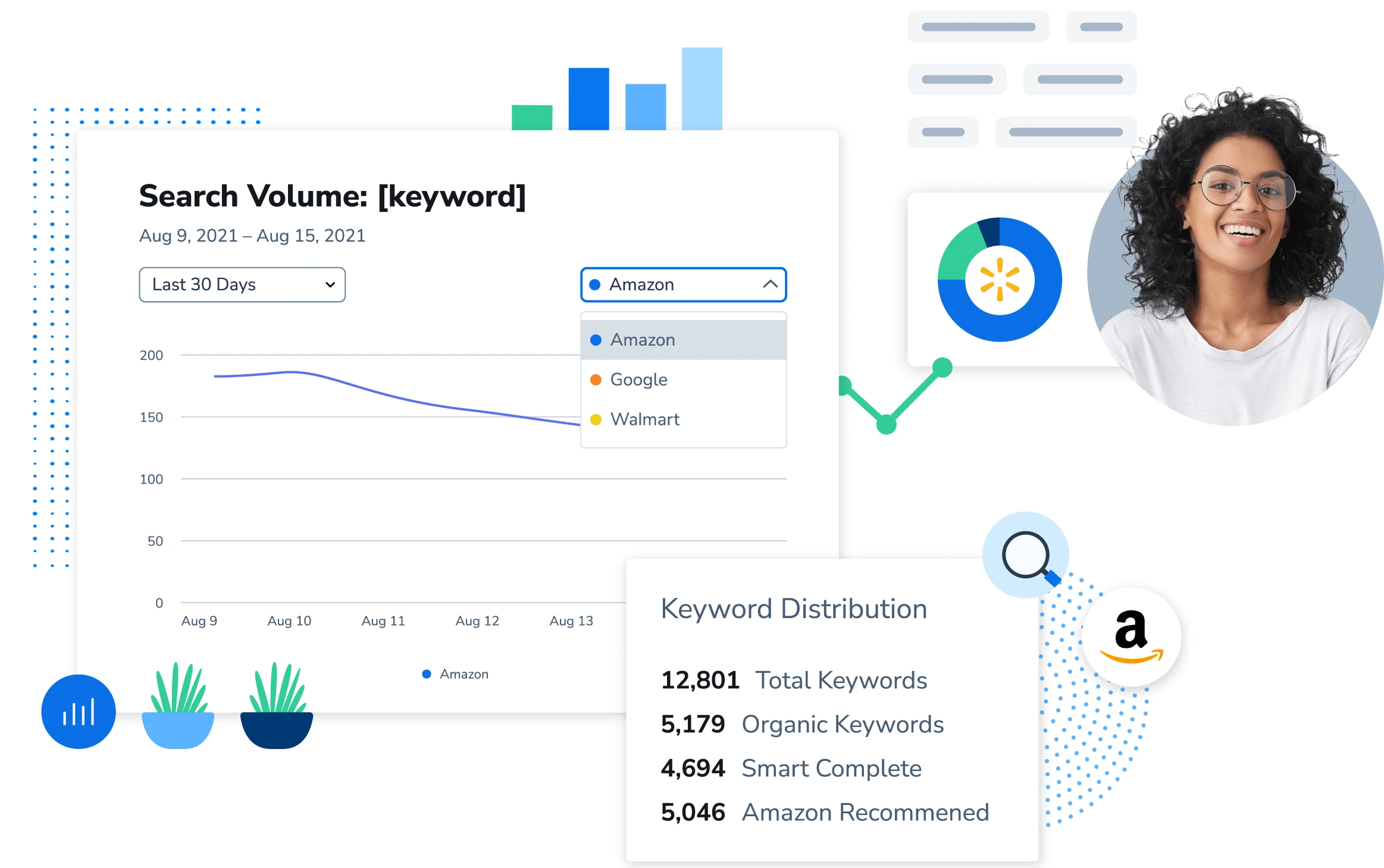
Input competitor ASINs to reverse-engineer where traffic comes from and which keywords drive sales. Supports up to 10 ASINs side by side, showing shared keywords (overlap) and gaps (keywords competitors have that you don’t). You can filter by organic rank, search volume, title density, and more to pinpoint opportunities to outrank.
Competitor Selection Strategy (How to Pick 8 ASINs)
Not random—use a structured mix:
| Type | Count | Selection Standard | Purpose |
|---|---|---|---|
| Top benchmarks | 3 | Highest BSR, most reviews | See primary battlefield keywords |
| Mid-tier, catchable | 3 | 200–500 monthly sales, 100–500 reviews | Find realistic target keywords |
| Rising newcomers | 2 | Listed <12 months, obvious growth | Discover new tactics and blue-ocean keywords |
Core Filter Explanation
| Filter | Meaning | Practical Tip |
|---|---|---|
| Search Volume | Monthly search volume | ≥500 has traffic value; <100 long-tail for PPC tests |
| Organic Rank | Organic ranking | 1–20 core, 21–50 potential, >50 long-tail |
| Sponsored Rank | Ad ranking | Competitors advertising with weak organic = your organic opportunity |
| Title Density | # of competitors using keyword in title | High density must-win, low density may be blue-ocean |
| CPR (Cerebro Product Rank) | Estimated units to hit page 1 in 8 days | Evaluate promo cost |
| Word Count | Keyword length | 1–2 words = head terms, 3–4 = precise terms, 5+ = long-tail |
Three-Tier Keyword Layering
1. Battlefield keywords (must-win)
- Filter: multiple competitors rank top 20 (high overlap)
- Use: must be in title, repeated in bullets, heavy ad focus
- Traits: high volume, high competition, stable conversion
2. Opportunity keywords (breakthroughs)
- Filter: competitors rank but you don’t, or competitors rank 30–100
- Use: place in bullets/description, run ads, find leapfrog chances
- Traits: medium volume, lower competition, niche demand
3. Defensive keywords (long-tail coverage)
- Filter: volume 100–500, long-tail phrasing
- Use: backend search terms, A+ content, long-tail ad groups
- Traits: higher conversion potential, limited volume
Practical Workflow
- Input 8 ASINs (by the structure above)
- Click “Get Keywords” and wait for data
- Use “Advanced Filters” for volume, rank, etc.
- Use “Compare Competitors” to see overlap
- Export full CSV and clean in Keyword Processor
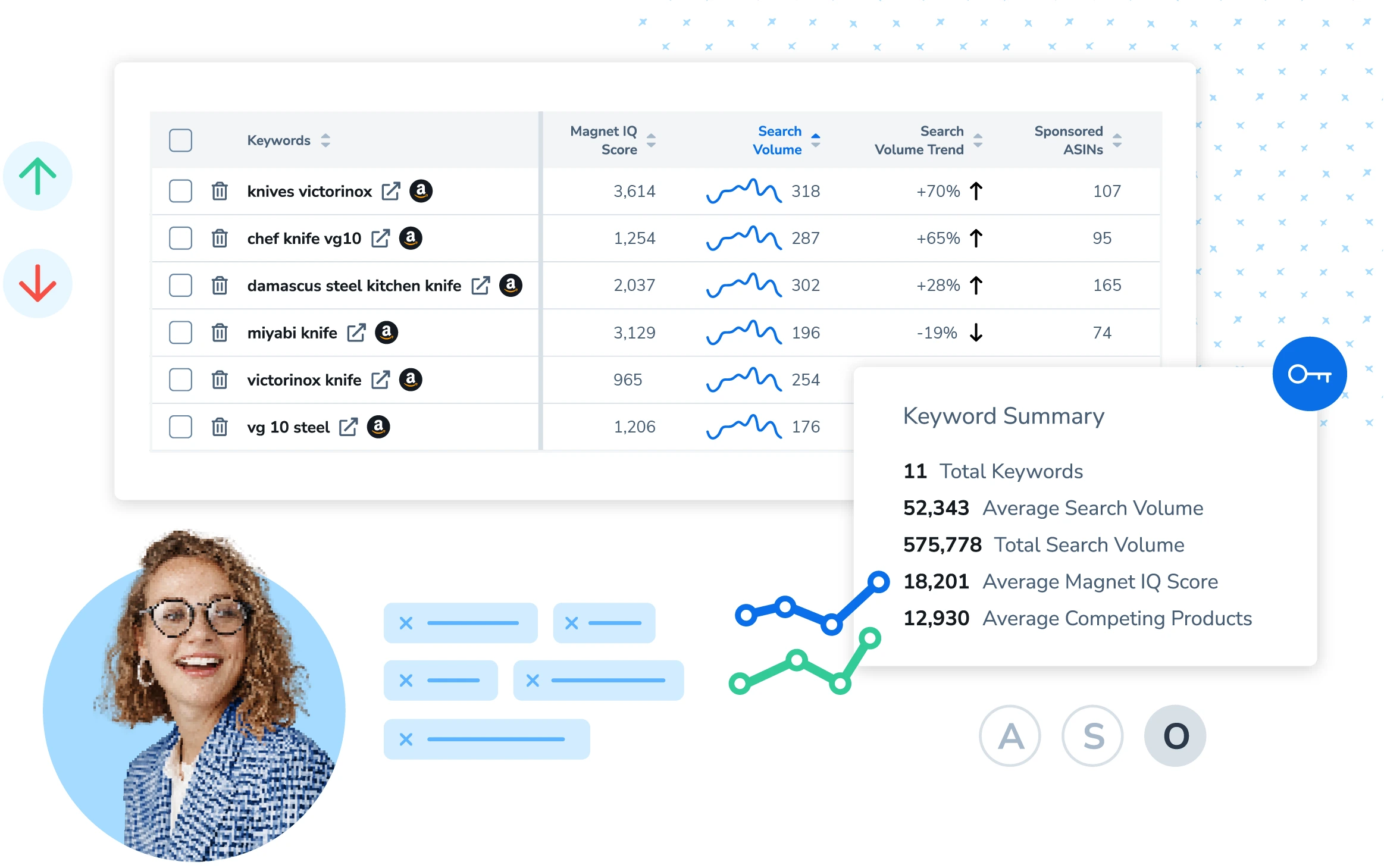
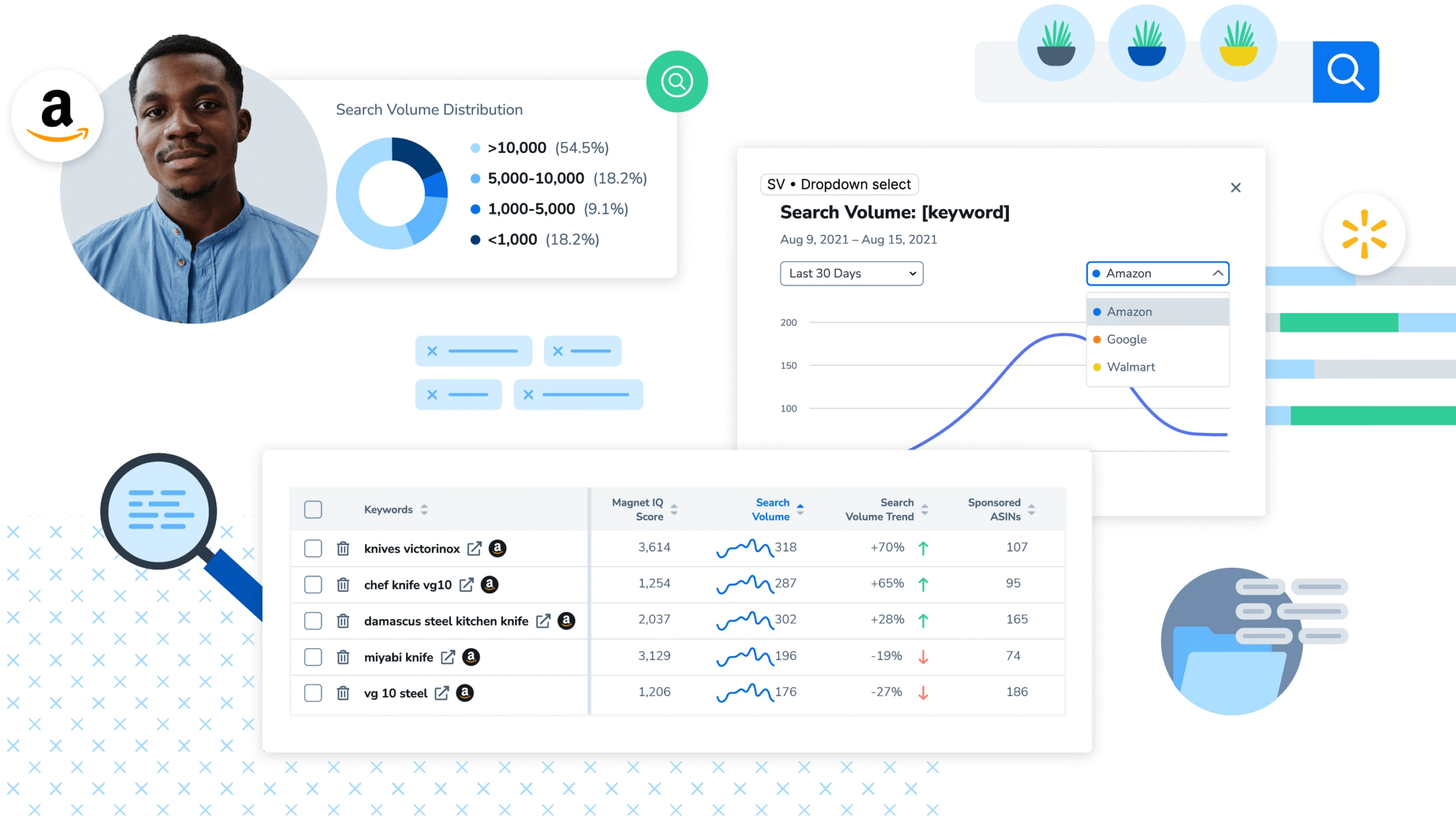
Magnet: Expand “Real Buyer Language” to Find Long-Tail and High-Intent Keywords
Cerebro tells you what competitors are targeting; Magnet finds how buyers actually search. Use both for a complete keyword bank.
Cerebro vs Magnet: What’s the Difference?
| Dimension | Cerebro | Magnet |
|---|---|---|
| Input | Competitor ASINs | Seed keywords |
| Logic | Reverse engineering: which keywords drive competitor traffic | Forward expansion: related expressions of a seed keyword |
| Output | Competitor-validated keywords | Buyer search terms (including gaps competitors miss) |
| Best stage | Competitor analysis, gap finding | Keyword expansion, blind spot coverage |
Two-Round Expansion Method
Round 1: Use battlefield keywords as seeds (ensure relevance)
- Pick 3–5 core keywords from Cerebro’s battlefield set
- Run each in Magnet for related terms
- Focus on high “Magnet IQ Score” keywords (volume + competition)
Round 2: Use scenario/audience/pain-point seeds (fill long-tail gaps)
- Scenario: usage context, e.g., “outdoor,” “travel,” “office”
- Audience: target users, e.g., “for kids,” “for seniors,” “for beginners”
- Pain points: problems solved, e.g., “waterproof,” “portable,” “lightweight”
Core Metric Interpretation
| Metric | Meaning | How to use |
|---|---|---|
| Search Volume | Monthly volume | Basic threshold; be cautious <100 |
| Magnet IQ Score | Composite score (volume/competition) | Higher is better; >5 is strong |
| Competing Products | Related product count | Too many = heavy competition |
| Title Density | Title inclusion rate | High = battlefield, low = potential blue-ocean |
| CPR | Units to hit page 1 in 8 days | Gauge promo difficulty |
Tips to Find Hidden Opportunities
1. Find “high volume + low competition” keywords
- Filter: Search Volume > 1000, Competing Products < 500
- These are often overlooked blue-ocean terms
2. Watch “question-style” searches
- e.g., “how to clean…”, “best … for …”
- These reflect clear buying intent
3. Identify seasonal/holiday terms
- e.g., “christmas gift for dad,” “back to school supplies”
- Seed early before peak season
Output → Next Step
After merging Magnet expansion keywords with Cerebro competitor keywords, clean them in Keyword Processor.
Part 3: Keyword Cleaning & Structuring (Decides Whether You Can Execute)
Keyword Processor: Turn Thousands of Words into a Keyword Bank (Four Groups)
After running Cerebro + Magnet, you may have thousands of keywords. Use them directly? Impossible. Keyword Processor (older users may know it as Frankenstein) is built for this—deduplicate, remove noise, normalize, then output a clean keyword bank.
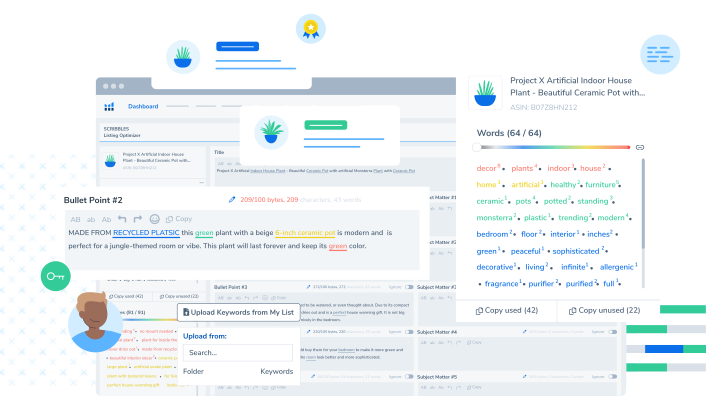
Input: full keyword list from Cerebro + expanded list from Magnet
Output: Keyword Bank v1 (four groups)
Cleaning actions:
- Deduplicate
- Remove noise (irrelevant terms, brand names, weird characters, etc.)
- Normalize (case, spacing/hyphens)
- Group: title-level core terms / attribute terms / scenario terms / PPC test terms
This step determines whether your listing writing can actually flow—messy keywords = messy writing.
Part 4: Listing Execution & Benchmarking (Turn Keywords into Conversion)
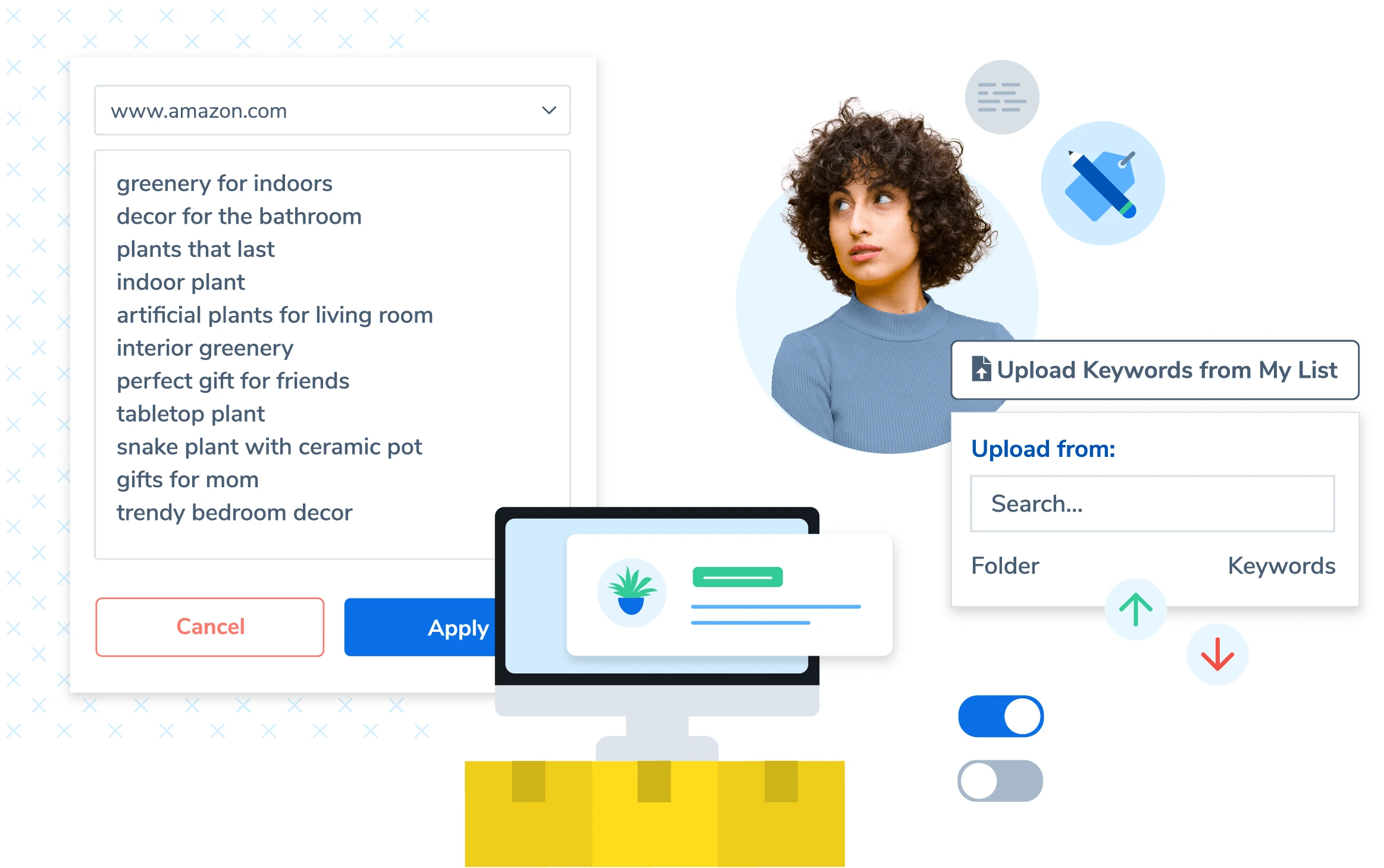
Scribbles: Real-time Coverage Tracking + Limits + Backend Term Editing
Two things kill listing writing: missing keywords and exceeding limits. Scribbles solves both—track coverage as you write, show character/word/byte limits in real time, and edit backend search terms directly.

Writing order (structure first, then fill keywords):
- Title: primary keyword + 1–2 key attributes
- Bullet 1: biggest pain → result
- Bullet 2: differentiation → evidence
- Bullets 3–5: specs/compatibility/how to use/after-sales
- Description/A+: handle objections and reduce returns
Then import the Keyword Bank to fill gaps, and move unsuitable terms into backend search terms.
Listing Builder: Multi-draft Iteration + Built-in Listing Analyzer
You can store multiple drafts per product—Version A focuses on conversion, Version B focuses on coverage—then run Listing Analyzer to compare scores. Keywords can be imported in one click.
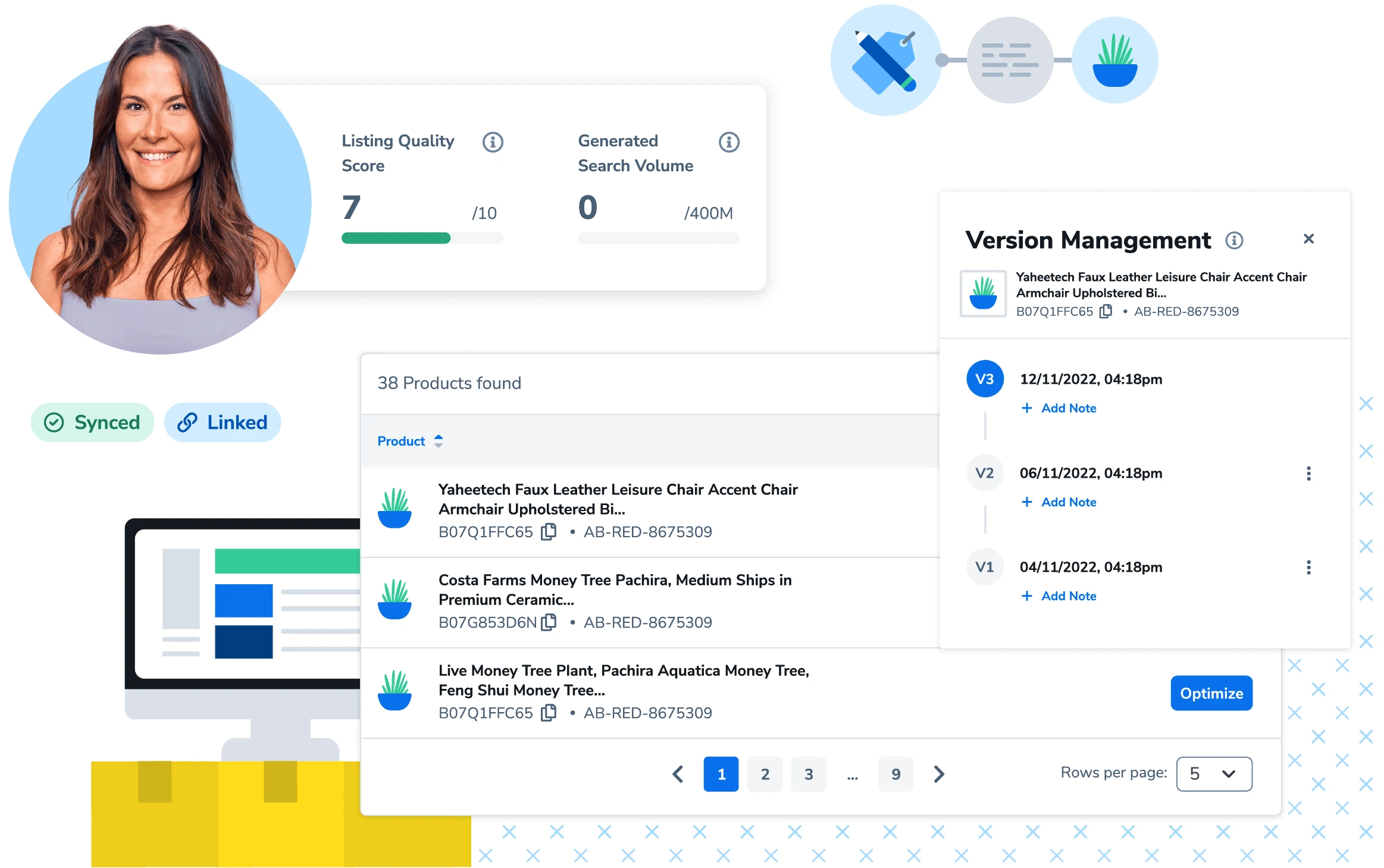
Listing Builder Core Features
1. Keyword import & management
| Feature | Description | Practical Tip |
|---|---|---|
| Import from Cerebro | One-click import of reverse keyword list | Filter in Cerebro first, then import |
| Import from Magnet | Import expanded keywords | Add long-tail and scenario terms |
| Manual keyword add | Custom terms | Add brand and variant terms |
| Keyword grouping | Group by priority/type | Manage title terms, bullet terms, backend terms separately |
2. Real-time scoring system
During writing, Listing Builder calculates:
- Listing Score: overall score (0-100), target ≥85
- Keyword Score: keyword coverage score; core terms must hit 100%
- Search Volume Coverage: traffic potential from covered volume
- Character Count: ensures you don’t exceed limits
3. Multi-version draft management
| Version strategy | Focus | Use case |
|---|---|---|
| Version A (conversion-first) | Pain→result structure, concise | Highly competitive niches needing fast conversion |
| Version B (coverage-first) | Maximize keyword density | Long-tail traffic, SEO-oriented |
| Version C (A+ optimized) | Aligned with A+ content structure | Brand sellers who need visual alignment |
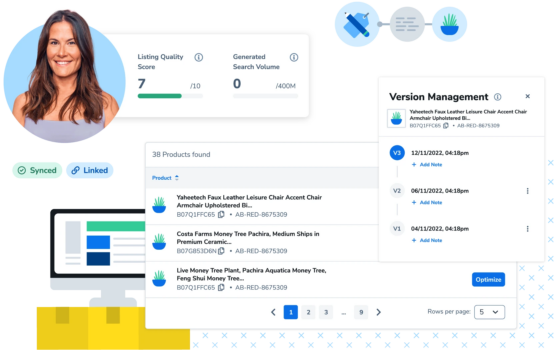
Listing Builder Full Workflow
Step 1: Create a new listing
- Open Listing Builder → click “Create New Listing”
- Enter product basics (category, variations, etc.)
- Select target marketplace (US/UK/DE/JP, etc.)
Step 2: Import the keyword bank
- Import filtered keyword lists from Cerebro/Magnet
- Or upload a CSV to bulk import
- Group and prioritize keywords inside Listing Builder
Step 3: Write each listing section
Title — 200-byte limit (varies by category)
- Format:
Brand + core keyword + primary attribute + secondary attribute + model/spec - Tip: put the highest-volume term within the first 80 characters
- Note: avoid keyword stuffing; keep readability
Bullet Points — 500-byte limit per bullet
| Bullet | Recommended structure | Content focus |
|---|---|---|
| Bullet 1 | Pain point → solution → result | Solve the user’s biggest problem |
| Bullet 2 | Differentiation → evidence → value | Why choose you over competitors |
| Bullet 3 | Specs/materials → quality assurance | Specific parameters and quality commitments |
| Bullet 4 | Usage scenarios → target audience | Who uses it and where |
| Bullet 5 | After-sales/guarantee → CTA | Remove purchase hesitation |
Description — 2000-byte limit
- If you have A+ content, description weight drops
- No A+: use it to add info and long-tail terms missing from bullets
- Format: clear paragraphs, basic HTML tags (supported in some categories)
Backend Search Terms — 250-byte limit
- Don’t repeat terms already in the title/bullets
- Add synonyms, spelling variants, Spanish/French terms (for US multilingual buyers)
- Separate with spaces; no commas or punctuation
Step 4: Real-time optimization checks
- Monitor Listing Score on the right, target ≥85
- Check keyword coverage to ensure 100% coverage for core terms
- Use “Unused Keywords” to find missing terms
Step 5: Export & upload
- Export as CSV for bulk upload to Seller Central
- Or copy fields directly
AI Writing Assistant (Listing Builder AI)
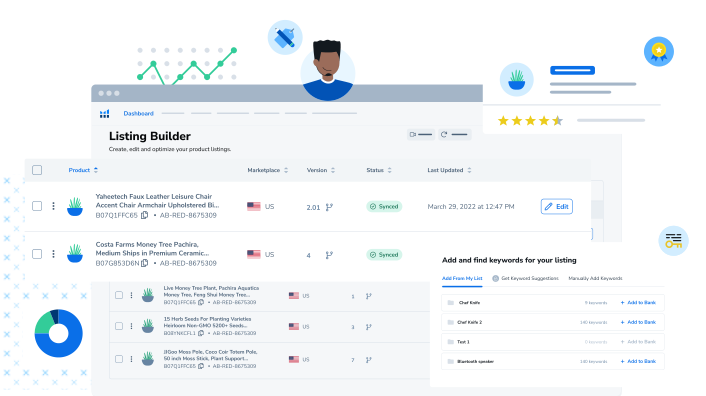
Helium 10 integrates AI writing to help generate listing content:
How to use:
- Click “AI Assist” in Listing Builder
- Input product basics and key selling points
- AI generates a draft → manually edit and optimize
Notes for AI-generated content:
- ✅ Works as a draft framework and boosts efficiency
- ✅ Helps break writer’s block
- ⚠️ Must manually review keyword coverage
- ⚠️ Avoid overly “AI-sounding” phrasing
- ❌ Do not use AI output directly without editing
Listing Analyzer: Single-ASIN Audit & Competitor Comparison
Want to know where your listing falls short? Drop it in and run it. You can also compare against up to 10 competitors at once.
Listing Analyzer Core Metrics
1. Listing Quality Score (LQS) — Overall quality score
| Score range | Level | Meaning |
|---|---|---|
| 90-100 | Excellent | Complete structure, strong keyword coverage |
| 70-89 | Good | Core elements present, room for optimization |
| 50-69 | Average | Clear weaknesses, needs focused improvement |
| <50 | Poor | Multiple missing basics, hurts conversion |
2. Dimension breakdown
| Dimension | Weight | What to check | Optimization tip |
|---|---|---|---|
| Title quality | 25% | Length, keyword density, readability | Put core terms early, keep to 150–200 chars |
| Image quality | 25% | Count, resolution, video included | At least 7 images + 1 video |
| Bullet points | 20% | Completeness, keyword coverage, structure | 3–5 lines per bullet, cover core selling points |
| Description/A+ | 15% | Length, format, keyword usage | Use A+ if available; otherwise maximize description |
| Backend terms | 10% | Fill rate, relevance | Don’t repeat body terms; add synonyms |
| Other | 5% | Variations, reviews, price competitiveness | Complete variations, reasonable pricing |
Competitor Comparison Analysis
Comparison dimensions:
| Item | Value | Decision guidance |
|---|---|---|
| Keyword overlap | Shared keywords | Must-win terms—don’t lose them |
| Keyword gaps | Competitors have, you don’t | Fill high-volume gaps |
| Image comparison | Image count/quality | Learn better presentation styles |
| Review analysis | Review count and rating | Find possible conversion gap reasons |
| Price positioning | Price rank vs competitors | Validate pricing strategy |
Listing Analyzer Practical Workflow
Scenario 1: Pre-launch listing audit
- Finish a draft in Listing Builder, then copy to a test ASIN or preview
- Run Listing Analyzer to score each dimension
- Optimize low-scoring areas
- Repeat until LQS ≥85
Scenario 2: Existing listing optimization
- Input your ASIN as the main product
- Add 5–8 better-performing competitor ASINs
- Compare and identify the largest gaps
- Prioritize areas with biggest impact
Scenario 3: Regular health checks
| Frequency | Focus | Trigger for optimization |
|---|---|---|
| Weekly | Score volatility, keyword rank shifts | LQS drops >5 |
| Monthly | Gaps vs competitors | New competitor overtakes you |
| Quarterly | Overall optimization impact | Conversion rate keeps dropping |
Report Output
Listing Analyzer can export detailed reports, including:
- Executive Summary: one-page summary, ideal for reporting
- Keyword Gap Analysis: keyword gap list
- Competitive Positioning: competitor comparison matrix
- Action Items: prioritized optimization checklist
Part 5: Profit & Risk Control (From Higher Sales to Consistent Profit)
Profits: Break Down Margins with Operating Metrics
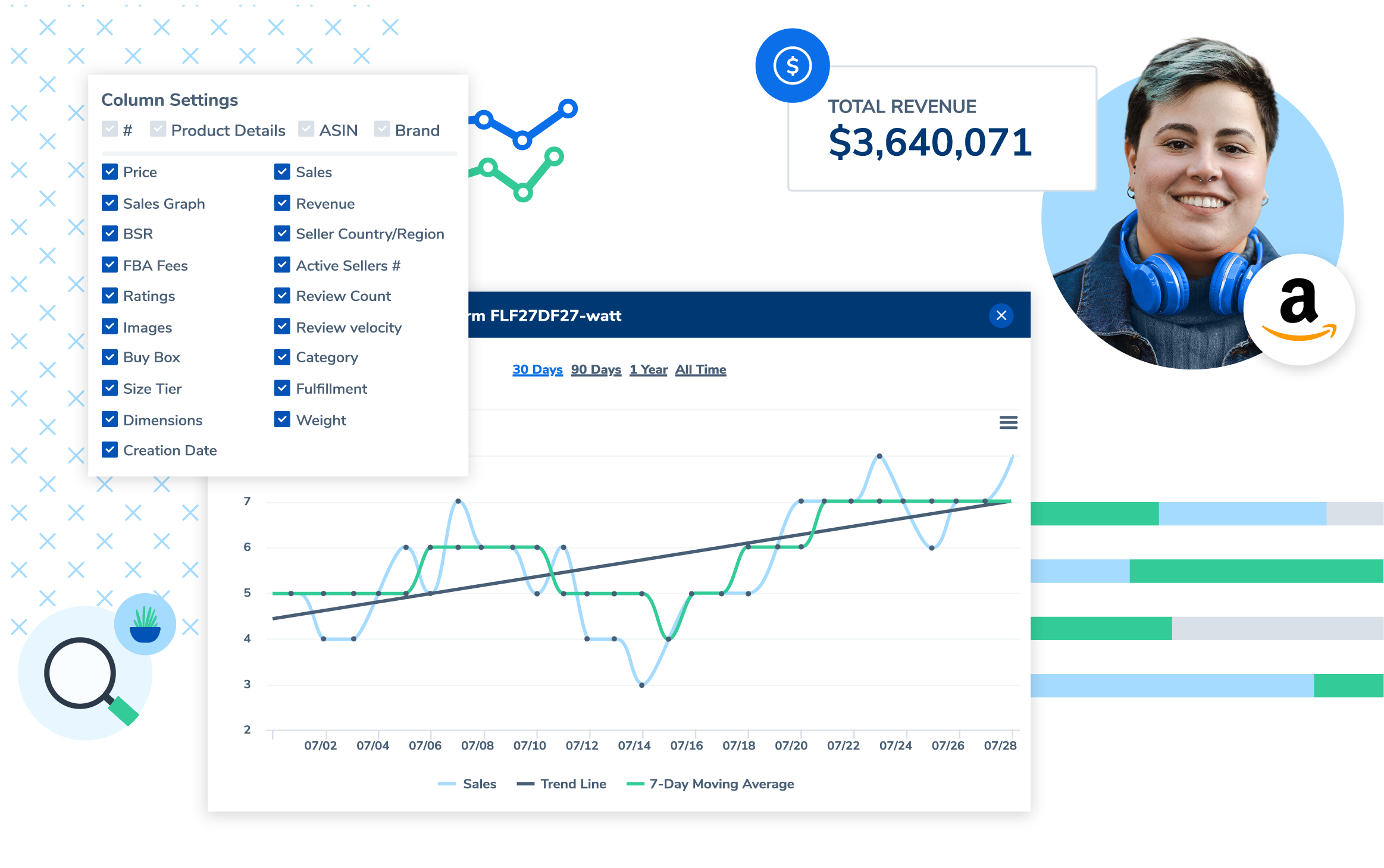
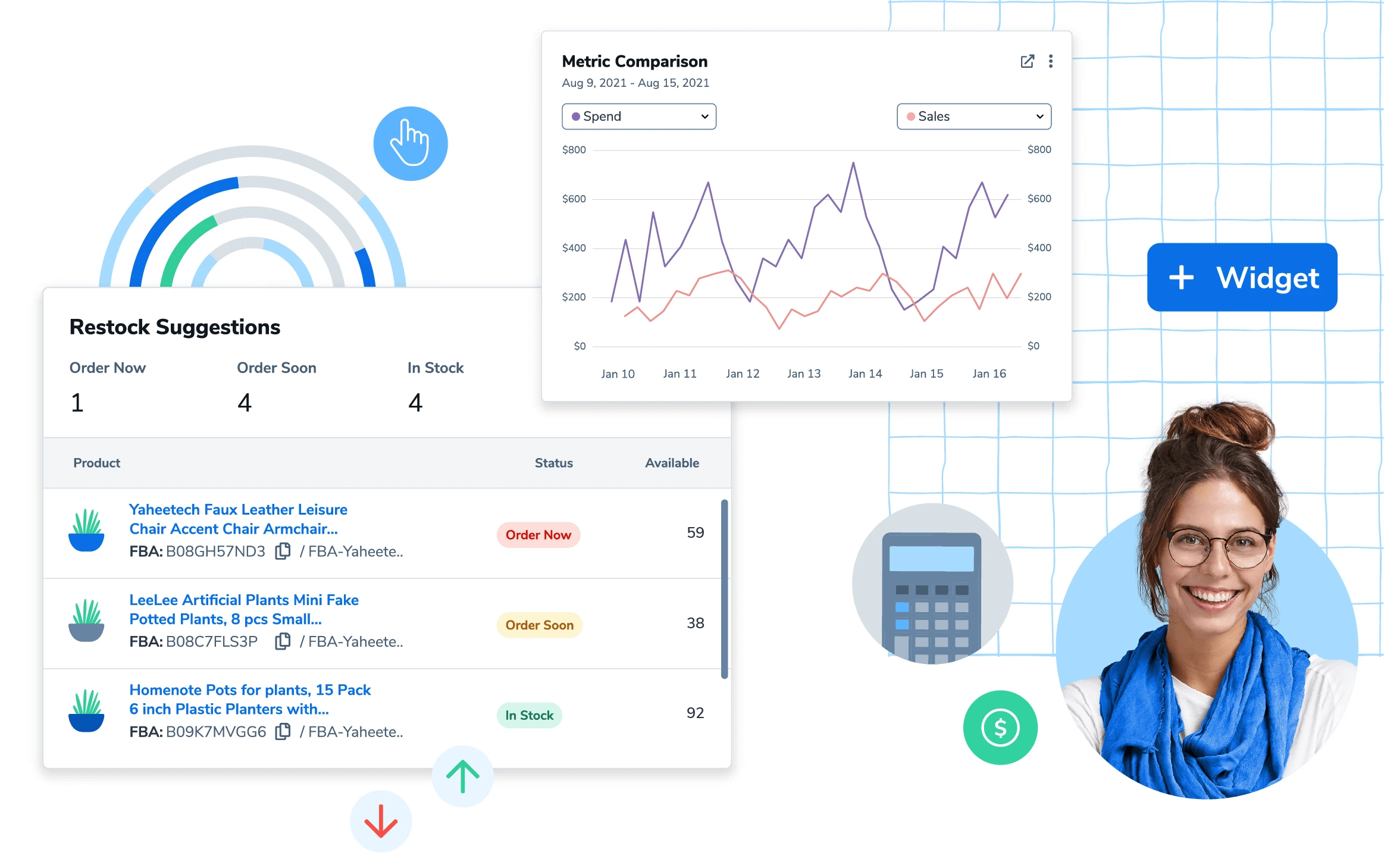
If you only discover losses at month-end, it’s too late. Profits breaks down orders, sales, promos, refunds, revenue, profit, gross margin, and total costs—so you can see at a glance which SKUs make money and which drag you down.
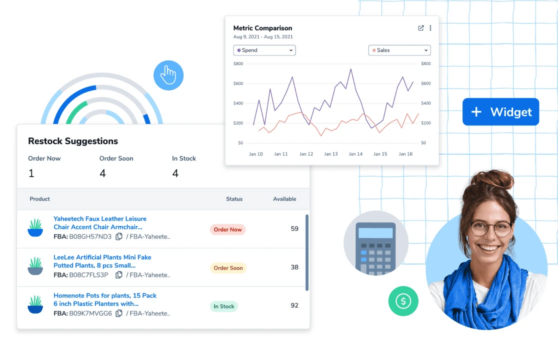
Profits Core Metrics
1. Revenue metrics
| Metric | Definition | Focus |
|---|---|---|
| Gross Revenue | List price × units | Overall scale |
| Net Revenue | After refunds/promos | Real cash-in |
| Units Sold | Unit volume | Fulfillment capability |
| Orders | Order count | Basis for AOV analysis |
2. Cost metrics
| Cost type | Includes | Optimization direction |
|---|---|---|
| COGS (Cost of Goods Sold) | Purchase cost + inbound shipping | Manual input; accuracy improves analysis |
| Amazon Fees | FBA fees + commissions + storage | Optimize packaging to reduce FBA fees |
| PPC Spend | Ad spend | Synced automatically; watch ACoS |
| Promotions | Discount costs | Coupons, Lightning Deals, etc. |
| Refunds | Refund amount | High refund rates need investigation |
3. Profit metrics
| Metric | Formula | Healthy baseline |
|---|---|---|
| Gross Profit | Net Revenue - COGS | Positive is the minimum |
| Net Profit | Gross profit - Amazon fees - PPC - other costs | Target ≥15% |
| Profit Margin | Net Profit / Net Revenue × 100% | 20–30% is healthy |
| ROI | Net Profit / Total cost × 100% | ≥30% is good |
Profits Dashboard Details
1. Dashboard overview
The dashboard shows:
- Revenue and profit trends by day/week/month/year
- Top profit SKUs and top loss SKUs
- Cost structure pie chart
- Key metric MoM/YoY changes
2. Product-level analysis
Each SKU can show:
- Profit contribution
- Cost breakdown
- Historical trend (spot when issues began)
- Comparison against other SKUs
3. Time-dimension analysis
| Time dimension | Value |
|---|---|
| Daily | Spot abnormal swings (e.g., sudden losses) |
| Weekly | Weekend vs weekday pattern |
| Monthly | Seasonality and goal tracking |
| Custom range | Promo post-mortems and YoY analysis |
Profits Practical Scenarios
Scenario 1: Break-even analysis for new products
- Input accurate COGS
- Set target price
- Profits calculates break-even at different sales volumes
- Combine with PPC budget to estimate launch loss tolerance
Scenario 2: SKU-level optimization decisions
| SKU status | Criteria | Decision |
|---|---|---|
| High sales + high profit | Net margin >25%, monthly sales >200 | Invest more, keep growth |
| High sales + low/negative profit | Net margin <10% or loss | Optimize costs or raise price |
| Low sales + high profit | Net margin >30%, monthly sales <50 | Increase promotion to gain traffic |
| Low sales + low profit | Both low | Consider clearance or delisting |
Scenario 3: Ad efficiency analysis
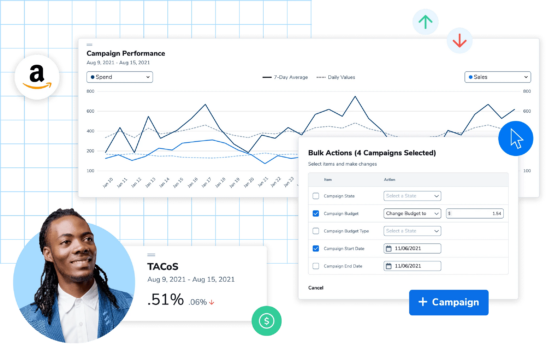
Profits integrates with Helium 10 Adtomic to:
- View ad spend and ACoS by SKU
- Calculate TACoS (ad spend / total revenue)
- Identify “ad-dependent” SKUs (ACoS >30% and organic share <30%)
Scenario 4: Refund rate monitoring
| Refund rate | Status | Action |
|---|---|---|
| <3% | Normal | Keep it up |
| 3-5% | Watch | Analyze refund reasons |
| 5-10% | Warning | Check product quality, listing accuracy |
| >10% | Danger | May trigger Amazon review; act immediately |
Best Practices for Cost Entry
COGS input tips:
- Bulk import: update costs via CSV
- Variation-specific: different variants may have different costs
- Cost updates: update when purchase costs change
- Inbound allocation: allocate inbound shipping to each unit
Recommended cost formula:
Unit COGS = purchase unit cost + (total inbound cost / total shipped units)
Advanced: include hidden costs
- QC costs
- Packaging costs
- Last-mile loss allowance (estimate 2-5% from history)
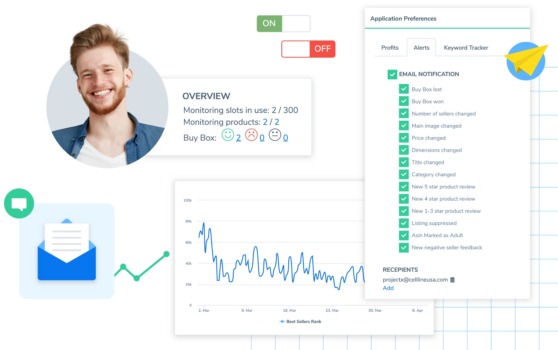
Alerts: 24/7 Monitoring & Protection
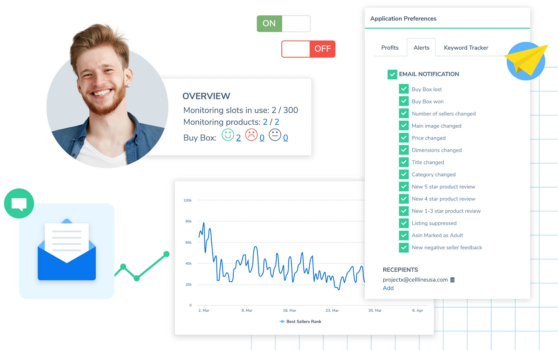
Listing edits, inventory anomalies, hijackers—by the time you notice, it’s often too late. Alerts watches 24/7 and pushes notifications immediately.
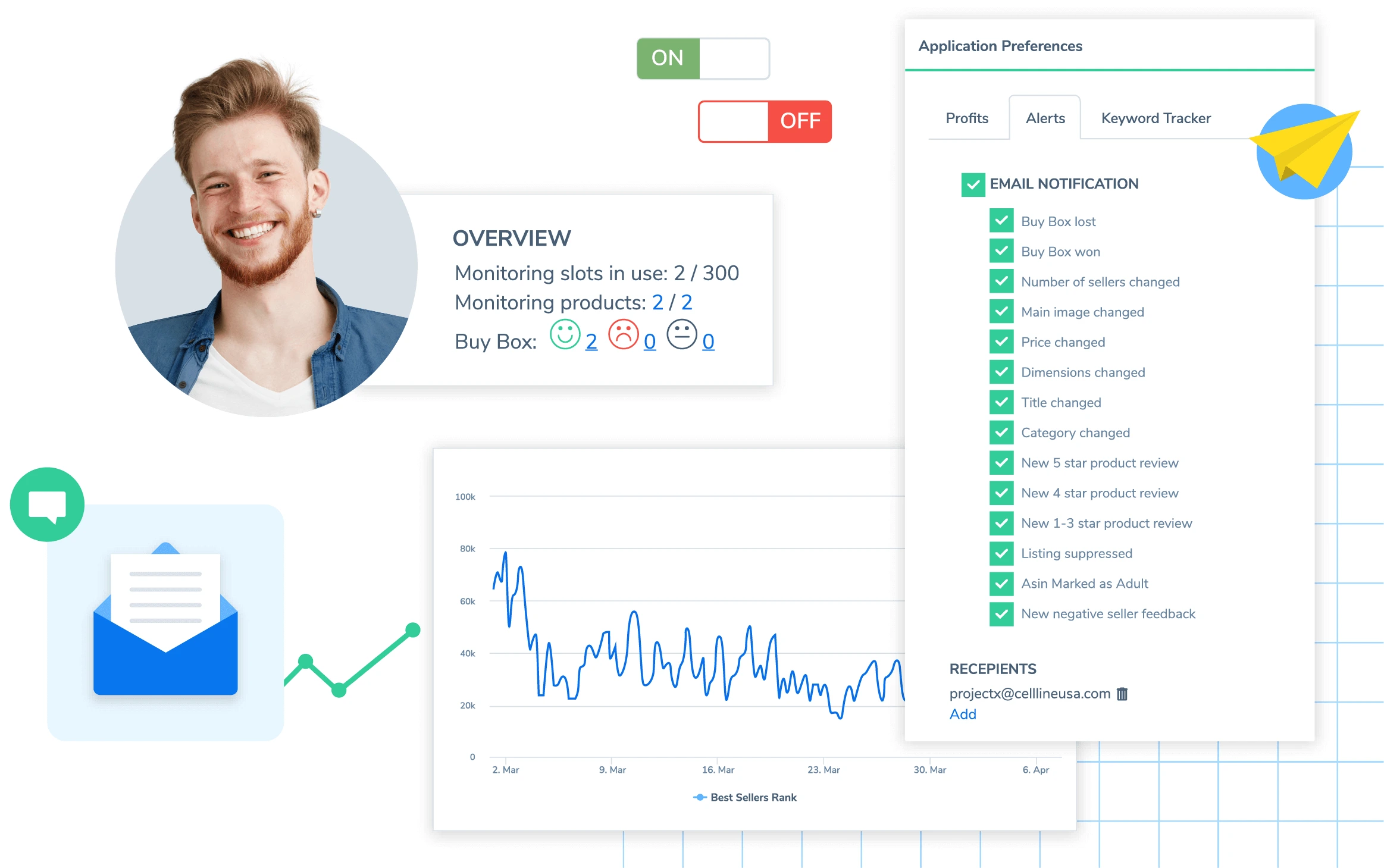
Alerts Monitoring Types
1. Listing change monitoring
| Item | Risk | Recommended setting |
|---|---|---|
| Title change | Malicious edits can hurt rankings | ✅ Must enable |
| Image change | Tampered main image hurts conversion | ✅ Must enable |
| Bullet/description change | Keyword removal can cut traffic | ✅ Must enable |
| Price change | Malicious undercut/markup | ✅ Must enable |
| Category change | Category edits can hide listing | ✅ Must enable |
| BSR change | Sales anomaly | Optional, set fluctuation thresholds |
2. Buy Box monitoring
| Item | Description | Response |
|---|---|---|
| Buy Box loss | Another seller takes the cart | Check hijack or price competition |
| New hijacker | New seller appears on your listing | Evaluate infringement and prep complaint |
| Buy Box price change | Competitor reprices | Decide to follow or hold |
3. Inventory monitoring
| Item | Trigger | Suggested setting |
|---|---|---|
| Low stock | Below safety stock | Set by days of cover (e.g., 30 days) |
| Zero stock | Stockout | Immediate alert |
| Abnormal stock swing | Large increase/decrease (system error possible) | Alert on >20% daily change |
| Storage fee warning | Aging inventory fees incoming | 30-day early warning |
4. Review monitoring
| Item | Value | Recommended action |
|---|---|---|
| New negative review (1–2 stars) | Respond fast | ✅ Immediate alert |
| Review count change | Detect review attacks/deletions | Alert if >3/day |
| Rating drop | Overall rating declines | Alert on >0.1 drop |
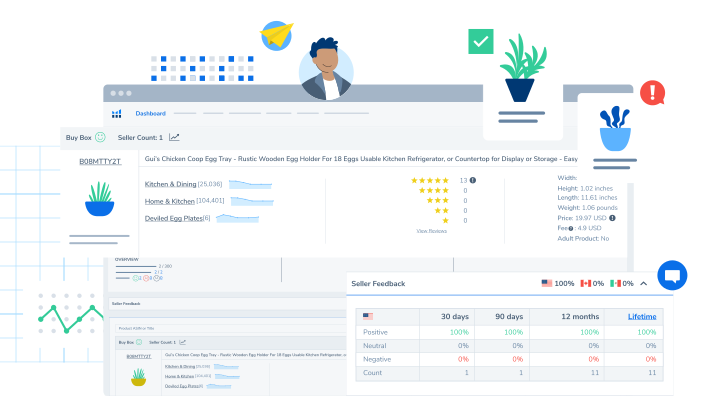
Alerts Configuration Best Practices
Step 1: Add ASINs to monitor
- Go to Alerts → click “Add Products”
- Input ASINs or sync from account
- Select what to monitor
Step 2: Set notification channels
| Channel | Features | Recommended use |
|---|---|---|
| Detailed, traceable | All alerts | |
| Mobile app push | Real-time | Urgent alerts (hijack, stockout) |
| SMS (some regions) | Fastest | Most urgent cases |
Step 3: Set alert thresholds
Example configuration:
- BSR change: fluctuation >30%
- Inventory warning: trigger when remaining <30 days of sales
- Price change: change >5%
- Rating change: drop >0.1
Hijacker Response SOP
When Alerts detects a hijacker:
Step 1: Evaluate the hijacker (within 30 minutes)
- Review seller store info
- Verify if authorized
- Confirm infringement
Step 2: Initial response (within 24 hours)
| Hijacker type | Response |
|---|---|
| Price war | Observe first, then match or hold |
| Counterfeit/infringement | Gather evidence and prepare complaint immediately |
| Authorized seller | Contact brand to confirm authorization |
Step 3: Formal action
- File complaint via Brand Registry
- Use Test Buy to purchase and preserve evidence
- Submit infringement complaint to Amazon
Emergency Response for Listing Tampering
When you find a listing changed:
- Screenshot: capture current state immediately
- Check history: review change logs in Alerts
- Fix immediately: revert in Seller Central
- Open a case: report malicious tampering to Amazon
- Upgrade protection:
- Ensure Brand Registry is active
- Consider Transparency program
- Check for unauthorized vendor codes
Alert Severity Management
| Level | Examples | Response time | Notification |
|---|---|---|---|
| P0 urgent | Hijackers, stockout, listing tamper | <1 hour | App push + email |
| P1 important | Negative reviews, Buy Box loss | <4 hours | |
| P2 watch | BSR swings, minor rating changes | <24 hours | Daily digest |
| P3 info | Positive changes (rating up) | View only | Weekly digest |
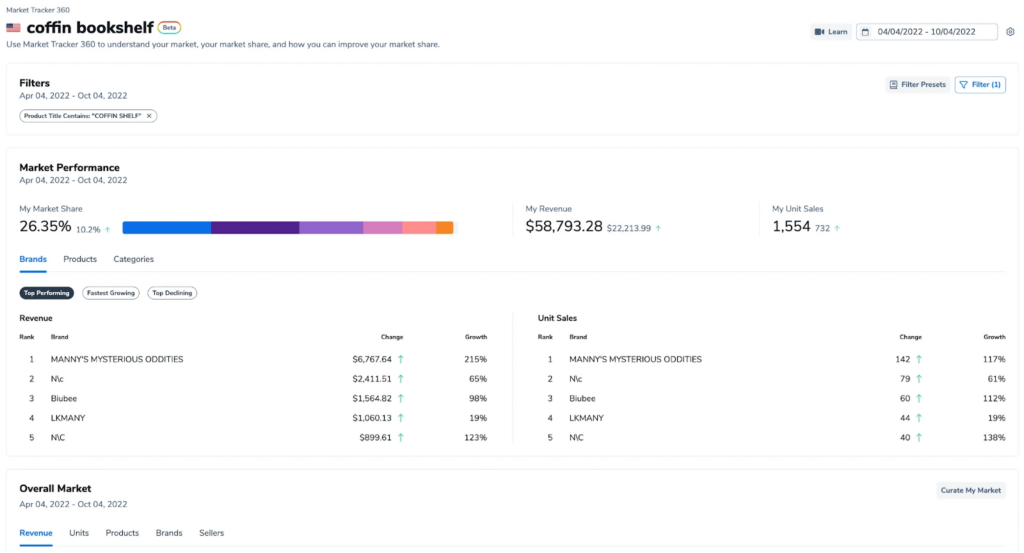
Market Tracker / Market Tracker 360: Expand & Defend with Market Share View
If you only watch single-product data, you miss the forest for the trees. Market Tracker shows market share: how much you own, how much competitors own, and whether it’s rising or falling. Market Tracker 360 goes further, turning competitor analysis into a full pipeline.
Market Tracker vs Market Tracker 360
| Dimension | Market Tracker | Market Tracker 360 |
|---|---|---|
| Positioning | Basic market tracking | Deep market intelligence |
| Data depth | Market share and trends | Full competitor intelligence |
| Update frequency | Daily | Real-time/daily |
| Target users | All sellers | Mid-to-large sellers, brands |
| Plan requirement | Platinum and above | Diamond or Custom |
Market Tracker Core Features
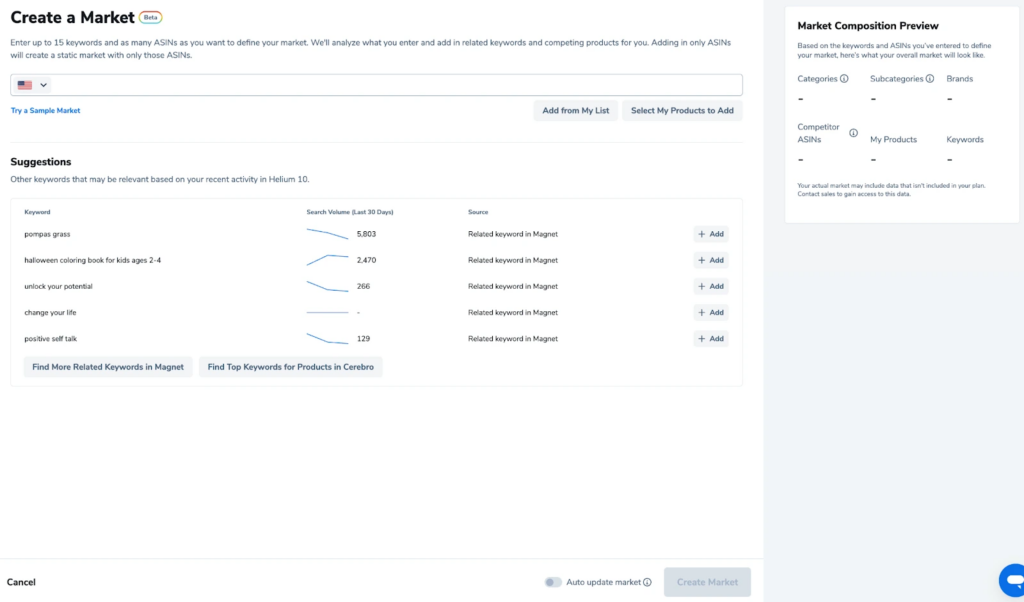
1. Define your market
First define what “your market” is:
| Method | Description | Use case |
|---|---|---|
| By keyword | Define around core search terms | Single product line |
| By ASIN set | Define market by competitor set | Niche category |
| By brand | Track a specific brand | Brand competition analysis |
2. Market share tracking
| Metric | Meaning | Value |
|---|---|---|
| Revenue Share | Revenue share | How much you earn in the market |
| Unit Share | Unit share | What share of units you sell |
| New Entrants | New entrants | Discover new competitors |
| Exiting Products | Exiting | Signals market washout |
3. Trend analysis
- Market size trend: is the total pie growing or shrinking?
- Share trend: is your share up or down?
- Competitor moves: who is rising or falling
- Seasonality: find cyclical patterns
Market Tracker 360 Deep Features
1. 360-degree competitor intelligence
| Module | What it analyzes | Decision value |
|---|---|---|
| Product intelligence | Full competitor product line | Find expansion opportunities |
| Pricing strategy | Competitor price history | Build pricing strategy |
| Traffic sources | Competitor keyword strategy | Optimize ads and SEO |
| New product tracking | Competitor launches | Prepare defenses early |
| Inventory status | Competitor stock estimates | Capture stockout opportunities |
2. Brand analysis
- Brand-level market share
- Brand product matrix
- Brand pricing strategy
- Brand launch cadence
3. Automated report generation
Configure regular reports:
- Weekly market brief
- Monthly competitor analysis
- Quarterly trend report
Market Tracker Practical Cases
Case 1: Expansion decision
Scenario: You sell yoga mats and want to expand to yoga blocks.
Steps:
- Create a “yoga blocks” market in Market Tracker
- Observe market size and growth trend
- Analyze the current player landscape
- Evaluate entry difficulty and potential share
Analysis framework:
| Metric | Threshold reference | Your judgment |
|---|---|---|
| Monthly market size | >$500K | ✅ / ❌ |
| Annual growth rate | >10% | ✅ / ❌ |
| Top concentration | CR3 <60% | ✅ / ❌ |
| New product survival | >40% still selling after 6 months | ✅ / ❌ |
Case 2: Competitor monitoring
Scenario: Your main competitor’s sales spike—why?
Steps:
- Add that competitor in Market Tracker 360
- Check traffic source changes
- Analyze new keyword coverage
- Check price changes or promos
- Decide whether to respond
Case 3: Defensive alerts
Scenario: You want early warning of threats.
Configuration:
- Set “New Entrants” alerts
- Monitor similar new listings
- Track competitor inventory and pricing changes
- Watch weekly market share changes
Integration with Other Tools
Market Tracker 360 works as an “intelligence center” when connected with other tools:
Market Tracker 360 detects trends
        ↓
Cerebro reverse-engineers competitor keywords
        ↓
Magnet expands related terms
        ↓
Listing Builder optimizes your listing
        ↓
Alerts continuously monitor changes
7-Day Closed-Loop SOP for New Products (From 0 to Launch)
Day 1: Xray health check (eliminate 80% false positives)
Output: candidate direction list (10 → 3)
Day 2: Competitor benchmarking (8 ASINs)
Output: benchmarking sheet (selling points / negative review pain points / solvable issues)
Day 3: Cerebro full reverse keyword export (up to 10 ASINs)
Output: full keyword list v0 (unfiltered)
Day 4: Magnet long-tail expansion
Output: expanded keyword list v0
Day 5: Keyword Processor cleaning → Keyword Bank v1
Output: four-group keyword bank
Day 6: Scribbles listing v1 (conversion structure first, then coverage)
Output: full draft of title/bullets/description/backend terms
Day 7: Listing Builder two drafts + Listing Analyzer benchmarking
Output: Version A (conversion-first) / Version B (coverage-first) + gap list
14-Day Growth SOP for Existing Products (Fill Gaps + Reorder + Attribution)
Days 1–3: Use Cerebro to find gap keywords and layer them
Days 4–5: Clean in Keyword Processor to form an actionable keyword bank
Days 6–8: Rewrite the first two bullets (pain→result; differentiation→evidence)
Days 9–10: Use Listing Analyzer to benchmark competitor gaps
Days 11–14: Review profit structure in Profits + monitor anomalies with Alerts
Which Plan to Choose (Detailed Comparison)
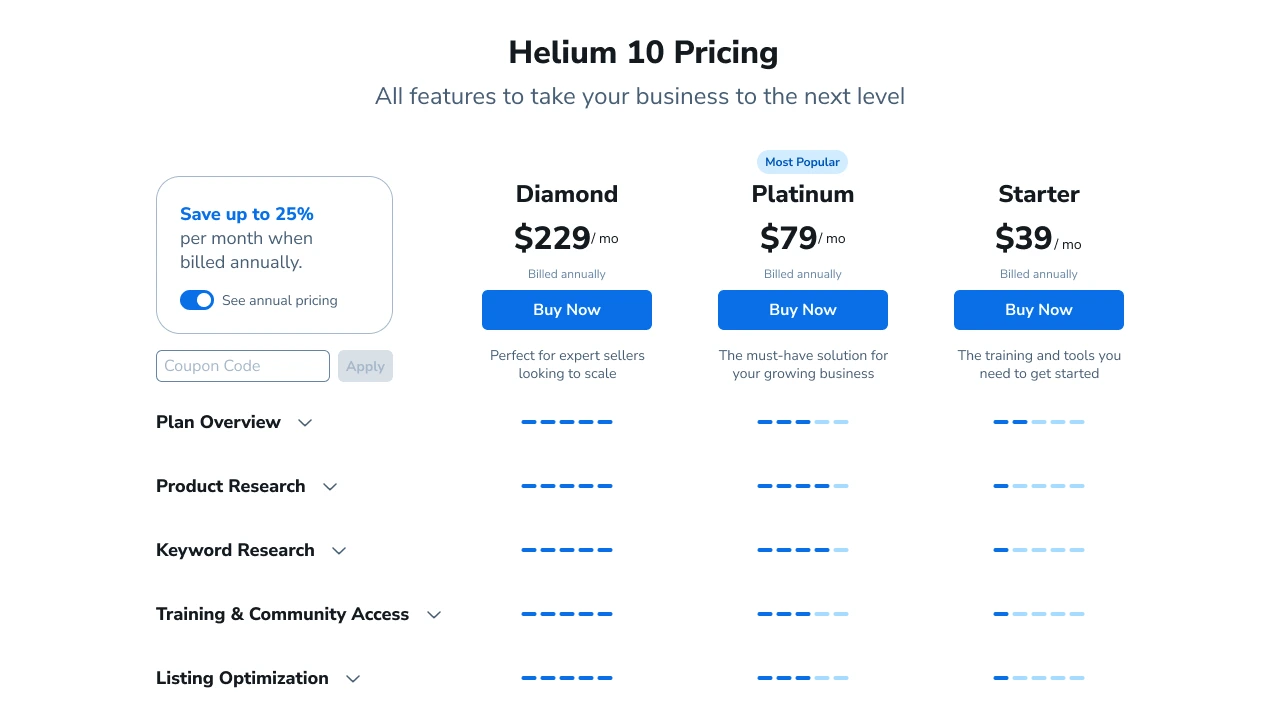
Plan Pricing & Feature Comparison (2026 Reference)
Note: Prices may change. Please refer to the Helium 10 pricing page for current rates. The following is for reference.
Plan Overview
| Plan | Monthly price | Annual price (per month) | Best for |
|---|---|---|---|
| Free | $0 | $0 | Try the workflow and validate fit |
| Starter | ~$39/mo | ~$29/mo | New sellers, single product line |
| Platinum | ~$99/mo | ~$79/mo | Advanced sellers, full toolchain |
| Diamond | ~$279/mo | ~$229/mo | Multi-line teams, deep analysis |
| Custom/Enterprise | Custom | Custom | Large sellers, agencies, multi-brand |
Core Feature Comparison
| Feature | Free | Starter | Platinum | Diamond |
|---|---|---|---|---|
| Chrome Extension | ✅ Full | ✅ Full | ✅ Full | ✅ Full |
| Xray | Limited | ✅ | ✅ | ✅ |
| Black Box | Limited | 20/mo | Unlimited | Unlimited |
| Cerebro | Limited | 20/mo | Unlimited | Unlimited |
| Magnet | Limited | 20/mo | Unlimited | Unlimited |
| Keyword Processor | ❌ | ✅ | ✅ | ✅ |
| Scribbles | ❌ | ✅ | ✅ | ✅ |
| Listing Builder | Limited | ✅ | ✅ | ✅ |
| Listing Analyzer | Limited | ✅ | ✅ | ✅ |
| Profits | ❌ | Basic | ✅ | ✅ Advanced |
| Alerts | Limited | Basic | ✅ | ✅ Advanced |
| Market Tracker | ❌ | ❌ | ✅ | ✅ |
| Market Tracker 360 | ❌ | ❌ | ❌ | ✅ |
| Adtomic (Ads) | ❌ | ❌ | Add-on | Add-on/Included |
| Index/Rank tracking | Limited | Basic | ✅ | ✅ Advanced |
| Sub-accounts | 0 | 0 | 0 | 5+ |
| Support | Community | Priority email | Dedicated manager |
Plan Selection Decision Tree
Question 1: Do you already have stable sales?
├── No → Use Free + Chrome Extension to validate the workflow
│
└── Yes → Question 2: How many deep product/keyword studies per month?
    ├── <20 → Starter is enough
    │
    └── ≥20 → Question 3: Do you need team collaboration or multiple accounts?
        ├── No → Platinum is the best value
        │
        └── Yes → Question 4: Do you need deep market intelligence (Market Tracker 360)?
            ├── No → Platinum + add-ons as needed
            │
            └── Yes → Diamond
Detailed Plan Analysis
Free plan — run the workflow first
Best for:
- Beginners exploring Amazon
- Sellers validating if Helium 10 fits
- Occasional simple research
Limitations:
- Xray: 20 times/month
- Cerebro/Magnet: 2 times/month
- No Keyword Processor, Scribbles, Profits
Recommendation: test a few niches via Xray in the Chrome Extension. If the data is valuable, consider paid plans.
Starter plan — beginner-friendly
Best for:
- New sellers with a single product line
- Lower research frequency (<20/month)
- Limited budget
Enough for:
- 1–2 new product researches per month
- Basic listing optimization
- Basic profit tracking
Signals it’s not enough:
- Frequent usage caps
- Need deeper market tracking
- Need full ad analysis
Platinum plan — the mainstream choice
Best for:
- Advanced sellers with stable sales
- Need a full toolchain
- Regular product research and optimization
Core value:
- Unlimited use of core tools
- Full Profits and Alerts features
- Market Tracker (basic)
Why recommended: for most sellers, Platinum offers the best value—complete coverage from research to operations without usage limits.
Diamond plan — deep operations
Best for:
- Multi-line operations
- Team collaboration (multiple sub-accounts)
- Deep market intelligence
Core value:
- Market Tracker 360 deep intelligence
- Multi-account collaboration
- Dedicated customer success manager
- Higher data API access
ROI note:
- If monthly revenue >$50K, Diamond’s extra features may pay off
- If monthly revenue <$20K, Platinum is usually enough
Savings Tips
1. Prefer annual billing
- Annual plans are typically 20–30% cheaper
- If you plan to use long-term, annual is better
2. Use promo seasons
- Black Friday / Cyber Monday often have big discounts
- New users often get a first-month discount
- Prime Day may also offer deals
3. Upgrade/downgrade as needed
- Upgrade to Platinum during heavy research periods
- Downgrade to Starter during maintenance periods
- Helium 10 supports flexible plan changes
4. Buy only what you need
- Adtomic (ads tool) can be added separately
- If you don’t need Market Tracker 360, you don’t need Diamond
Helium 10 vs Competitors
Other mainstream Amazon seller tools include Jungle Scout, SellerSprite, and Keepa. Your choice depends on your priorities.
Helium 10 vs Jungle Scout
| Dimension | Helium 10 | Jungle Scout |
|---|---|---|
| # of tools | 30+ tools | ~15 tools |
| Chrome Extension | Free, full features | Paid to unlock full features |
| Keyword research | Stronger Cerebro + Magnet combo | Single tool, weaker |
| Listing optimization | Scribbles + Listing Builder full chain | Listing Builder comparable |
| Product research | Black Box + Xray | Product Database + Opportunity Finder |
| Profit tracking | Strong Profits | Available but less deep |
| Supplier research | Available (Supplier) | Available (Supplier Database) |
| Learning curve | Steeper, more tools to learn | Easier, simpler UI |
| Chinese support | Partial | Better |
| Pricing (entry) | ~$39/mo (Starter) | ~$49/mo (Basic) |
| Pricing (mainstream) | ~$99/mo (Platinum) | ~$79/mo (Suite) |
Recommendation:
- Choose Helium 10: deep keyword research, full listing optimization chain, advanced market tracking
- Choose Jungle Scout: limited budget, prefer a simpler UI, focus primarily on product research
Helium 10 vs SellerSprite
| Dimension | Helium 10 | SellerSprite |
|---|---|---|
| Target market | Global, US-focused | APAC focus (strong in JP/EU) |
| Chinese support | Partial | Native Chinese |
| Localization | Internationalized design | Optimized for Chinese sellers |
| Keyword tools | Powerful, comprehensive data | Solid, strong for Amazon Japan |
| Pricing | Higher | Lower |
| Community/training | Primarily English | Active Chinese community |
| Data accuracy | Very good for US | Possibly better for JP/EU |
Recommendation:
- Choose Helium 10: US-focused, need full toolchain, comfortable with English
- Choose SellerSprite: JP/EU focus, need Chinese UI, budget-sensitive
Helium 10 vs Keepa
| Dimension | Helium 10 | Keepa |
|---|---|---|
| Positioning | All-in-one seller tools | Price/sales history specialist |
| Historical data | Available but less deep | Extremely detailed, multi-year |
| Price tracking | Basic | Core specialty |
| BSR history | Available | Very detailed |
| Product research | Full | None |
| Keyword tools | Full | None |
| Listing optimization | Full | None |
| Pricing | $39–$279/mo | ~$19/mo |
Recommendation:
- Use both: Helium 10 for research and optimization, Keepa for historical validation
- Keepa only: very limited budget, only need price/sales history
Tool Stack Recommendations
Budget (under $50/mo):
- Helium 10 Free + Keepa ($19/mo)
- Use Xray for product research, Keepa for history validation
Standard setup (~$100/mo):
- Helium 10 Platinum ($79–99/mo)
- Full chain for product, keyword, listing, profit
Pro setup ($150+/mo):
- Helium 10 Platinum/Diamond + Keepa
- Or Helium 10 + SellerSprite (for different marketplaces)
Helium 10 Pros & Cons
Pros
1. Complete toolchain coverage
- 30+ tools cover the full process from research to operations
- Strong integration between tools; data flows directly
- No need to switch between platforms
2. Free and powerful Chrome Extension
- Run Xray research without a subscription
- Lowers the barrier and trial cost
3. Strong keyword research
- Powerful Cerebro reverse-engineering
- Supports multi-ASIN comparison
- Strong Magnet expansion
4. Complete listing optimization chain
- Full pipeline from keyword bank to writing to audit
- Real-time coverage tracking
- Multi-version draft management
5. Timely data updates
- Core data updates daily
- Alerts monitor in real time
6. Rich learning resources

- Freedom Ticket free training course
- Official YouTube channel with lots of content
- Active user community
Cons
1. Steep learning curve
- Too many tools; beginners can get lost
- Time required to master best practices
- Some feature entry points are not intuitive
2. Relatively high pricing
- Platinum at $99/mo is expensive vs peers
- Some advanced features require extra fees (e.g., Adtomic)
- Can be heavy for new sellers
3. Incomplete Chinese localization
- UI is mostly English
- Help docs are mostly English
- Chinese support response may be slower
4. Data accuracy error margin
- All third-party tools have estimation error
- Niche categories may have larger variance
- Cross-validate with other data sources
5. Some tools update slowly
- Older tools have dated UI
- New features sometimes unstable
- Occasional bugs
6. Data quality varies by marketplace
- US data is best
- Other marketplaces (especially smaller ones) can be less comprehensive
Who It Fits / Who It Doesn’t
Great fit for:
- ✅ Sellers focused on the US marketplace
- ✅ Mid-to-large sellers needing a full toolchain
- ✅ Sellers who care about keywords and listing optimization
- ✅ Sellers with workable English
- ✅ Willing to invest time learning
May not fit:
- ❌ Extremely budget-limited beginners (use free tier first)
- ❌ Niche marketplaces only (e.g., Middle East, India)
- ❌ No English at all
- ❌ Only need a single function (e.g., price tracking—Keepa is cheaper)
Compliance Reminder (Buyer Messaging & Reviews)
Buyer messaging: send only “necessary and allowed” messages
Amazon is strict about buyer communication. The Communication Guidelines in Seller Central are clear—don’t cross the line.
Review requests: use “Request a Review” first
This is Amazon’s official standardized request button with automatic translation, one-time per order, sent typically 5–30 days after delivery (check your dashboard). It’s safer than writing your own emails.
Reusable Templates (Ready to Use)
Template 1: Product Research Scorecard (10 → 3)
| Dimension | Score (1–5) | Notes |
|---|---|---|
| Demand strength | Is search intent clear? Is it a must-have? | |
| Competition crowding | Homogeneity and crowding | |
| Review barrier | Top review thresholds and crossability | |
| Negative review opportunities | Are pain points solvable? | |
| Ad risk | Sponsored density (experience-based) | |
| Supply chain/compliance | Certs/IP/sensitive risks | |
| Profit margin | Cost structure and margin estimate | |
| Total | 20+ to move forward |
Template 2: Competitor Benchmark Sheet (8 ASINs)
| ASIN | One-line selling point | Top 3 negative review pains | Solvable solution | Must-learn point |
|---|
Template 3: Keyword Bank (4 groups)
| Group | Placement | Notes |
|---|---|---|
| Title-level core terms | Title/main selling points | Fewer but precise |
| Attribute terms | Bullets/description | Specs, materials, compatibility |
| Scenario terms | Bullets/A+ | Audience, use cases |
| PPC test terms | Ads/long-tail | Test first, then scale |
Template 4: 14-Day Action Log (Attribution Review)
| Date | Action | Goal | Expected | 7-day result | Next step |
|---|
FAQ
Basics
What is Helium 10?
A suite of Amazon seller tools covering product research, keywords, listings, profit, and risk. The core positioning is an “all-in-one solution” to run the full process from research to operations.
Is the Chrome Extension free?
Yes. No subscription needed. After installing, you can use core features like Xray (product research), Profitability Calculator, and ASIN Grabber—best for validating fit.
Which Amazon marketplaces are supported?
Major marketplaces: US, CA, MX, UK, DE, FR, IT, ES, JP, AU, IN, AE, etc. US data is the most complete and accurate; other marketplaces vary by maturity.
Is Helium 10 data accurate?
A 15–30% error range in sales estimates is normal (all third-party tools have this issue). Search volume data is relatively accurate. Use Helium 10 for directional decisions, not precise numbers.
Is there a Chinese version?
No full Chinese version. UI and help docs are mainly English. Some machine translation exists but is average. If English is a barrier, consider SellerSprite as a supplement.
Tool Usage
What can Cerebro do?
Reverse-check competitor keywords. Input competitor ASINs (up to 10 side by side) to see:
- Which keywords drive competitor traffic
- Organic and sponsored rank for each keyword
- Search volume, title density, CPR, and more
- Keyword overlap and gaps across competitors
What’s the difference between Magnet and Cerebro?
- Cerebro: input ASINs to reverse engineer validated competitor keywords
- Magnet: input keywords to expand related searches
Use both: Cerebro identifies competitor terms, and Magnet expands buyer language.
What’s the relationship between Keyword Processor and Frankenstein?
Same tool. Frankenstein was the old name; now it’s Keyword Processor. It cleans raw keyword lists from Cerebro/Magnet by deduping, removing noise, and normalizing.
What’s the difference between Scribbles and Listing Builder?
- Scribbles: focused on keyword coverage tracking while writing
- Listing Builder: full listing creation and management, multi-draft, AI assist, integrated Listing Analyzer
If you just want to write quickly and check coverage, Scribbles is enough. For systematic multi-listing management and A/B drafts, use Listing Builder.
What metrics does Profits show?
Orders, units, promos, refunds, revenue, profit, margin, and total costs—so you can see which SKUs profit and which should be cut. It turns “month-end reconciliation” into “real-time control.”
What does Alerts do?
24/7 monitoring of listings and inventory with immediate alerts. Tracks listing tampering, hijackers, low stock, negative reviews, Buy Box loss, etc.
Market Tracker vs Market Tracker 360?
- Market Tracker: basic market tracking (size and share trends)
- Market Tracker 360: deep intelligence with 360 competitor analysis and automated reports
Market Tracker is in Platinum; Market Tracker 360 requires Diamond.
Plans & Pricing
Which plan should beginners choose?
Suggested path:
- Start with Free + Chrome Extension to validate the workflow
- If it’s valuable, start with Starter
- Upgrade to Platinum when you hit usage caps
Don’t jump straight to the most expensive plan.
Monthly or annual billing?
Both supported. Annual is usually 20–30% cheaper. If unsure, start monthly; switch to annual once confident.
Are there coupon codes?
Helium 10 often runs promos:
- New-user discounts for the first month
- Black Friday / Cyber Monday deals
- Partner coupon codes (search “Helium 10 coupon code”)
Can I get a refund?
There is a 7-day refund policy (check current terms). Use the free version to validate before buying.
Is Adtomic extra?
Adtomic is the ad management tool. Depending on plan, it may require add-on fees. Diamond usually includes the basic version; other plans need add-on.
Troubleshooting
Xray data won’t load—what to do?
- Refresh and retry
- Check if the Chrome Extension is up to date
- Clear browser cache
- Ensure you’re not over daily/monthly limits
- Contact support
Sales estimates are far off—what to do?
This is normal. All third-party tools have error. Suggestions:
- Treat estimates as relative (A sells better than B)
- Don’t base decisions on precise numbers
- Cross-validate with Keepa
- Calibrate with your own data
Keyword rank tracking seems inaccurate
Rank varies by location, search history, and time. Helium 10 ranks are sampled, so they may differ from manual searches. Focus on trends, not exact numbers.
Advanced Tips & Best Practices
Efficiency tips
1. Keyboard shortcuts
- In the Chrome Extension, learn shortcuts to boost speed
- In Cerebro/Magnet, use filter shortcuts
2. Bulk operations
- Cerebro supports bulk ASIN input (up to 10)
- Keyword Processor supports bulk imports
- Listing Builder supports bulk exports
3. Save common filters
- Save filter sets in Black Box, Cerebro, Magnet
- Avoid resetting parameters every time
4. Use exports
- Export key data regularly for backups
- Use CSV for deeper analysis or team sharing
Data analysis tips
1. Cross-validation
- Validate a data point with multiple tools
- E.g., use Keepa to validate Helium 10 sales estimates
2. Trends matter more than absolute values
- Focus on direction of change
- Don’t over-rely on one-time snapshots
3. Build your own benchmarks
- Calibrate tool errors with your real data
- Track “estimate vs actual” differences
Workflow optimization
1. Build SOPs
- Turn the 7-day and 14-day SOPs into your own checklists
- Each step should have clear inputs and outputs
2. Review regularly
- Weekly/monthly reviews of tool performance
- Track which features truly help
3. Team collaboration (Diamond plan)
- Set sub-account permissions reasonably
- Define team usage norms
- Share insights regularly
Common pitfalls to avoid
❌ Pitfall 1: Over-reliance on a single tool
- Don’t use only Helium 10; combine with other data sources
❌ Pitfall 2: Treat estimates as precise
- Sales and search volumes are estimates and have error
❌ Pitfall 3: Tool-stacking ≠ capability
- Tools only assist; strategy still matters
❌ Pitfall 4: Ignore learning costs
- Master 3 core tools well instead of touching 10 superficially
❌ Pitfall 5: Ignore compliance risk
- Tools provide data; compliance is on you
Conclusion: Tools Are Tools, Process Is the Asset
Helium 10’s value is not in how many features you subscribe to, but in whether you can connect them into a real working chain: health check → reverse keywords → clean keyword bank → listing execution → benchmarking → profit review → anomaly alerts.
When the chain runs smoothly, high-frequency decisions become executable steps, and “experience” becomes a repeatable “process.” That’s the true value of tools.
Try Helium 10 Now
If you want to validate fit at the lowest cost, start with the free tools and upgrade as needed.
Start free: enter from the official tools page and run a quick health check with the free extension
Try by use case: pick the right module for your current stage
Need the full solution: check plans and choose by team size