Amazon View in 3D lets shoppers rotate, pinch and zoom a 3D model of your product in the Amazon shopping app, and View in Your Room uses augmented reality to place it in their own space. Amazon states that “There is no cost for adding 3D models and augmented reality to your Amazon product listings” (checked 2026-10-04). You can get a model three ways: upload your own GLB or glTF file through Image manager, scan the product with the Amazon Seller app’s Create 3D Models feature, or hire a 3D modeling provider through the Service Provider Network.
The catch is in the details Amazon spreads across four pages: the upload path requires the Brand Representative role, files must pass a technical spec and a quality review, and some product types are excluded. This guide pulls those rules into one place and says plainly where Amazon’s public pages stop.
Sources, all read 2026-10-04: Amazon’s seller page 3D models and augmented reality, and the Seller Central help articles 3D shopping experience and supported product types, Upload 3D models and 3D model technical requirements. The help article on creating models with the Seller app returned no public article text on 2026-10-04, so this page does not describe that flow beyond what the main seller page says.
The Three Amazon 3D Experiences at a Glance
Amazon runs three customer-facing experiences off the same kind of 3D asset. Its help article notes that for each one, “you can upload your existing assets with our Upload 3D Model tool.”
| Experience | What the shopper does | Where it works (per Amazon, checked 2026-10-04) | Devices |
|---|---|---|---|
| View in 3D | Rotates, pinches and zooms the product from every angle | amazon.com, .ca, .co.uk, .de, .es, .fr, .it; fashion categories also .nl, .pl, .se, .com.tr | Amazon shopping app on iOS and Android |
| View in Your Room | Places the product in their own room through the camera | amazon.com, .ca, .co.uk, .de, .es, .fr, .it, .co.jp, .in | Amazon shopping app on iOS and Android devices that support augmented reality |
| Virtual Try-On (eyewear) | Sees the eyewear on their face from the front and sides | amazon.com, .ca, .co.uk, .de, .es, .fr, .it, .nl, .pl, .se, .com.tr, .co.jp, .in | Amazon shopping app on AR-capable iOS and Android devices |
Two details matter for planning. First, for enabled product types, Amazon says View in 3D “replaces the legacy View 360° experience,” so a 3D model supersedes an old spin set rather than sitting beside it. Second, the help article’s device line for View in 3D still reads “mobile web and desktop device support coming in 2024.” Amazon’s main seller page, by contrast, only describes the app on iOS and Android. Treat desktop and mobile-web display as unconfirmed rather than assuming it exists.
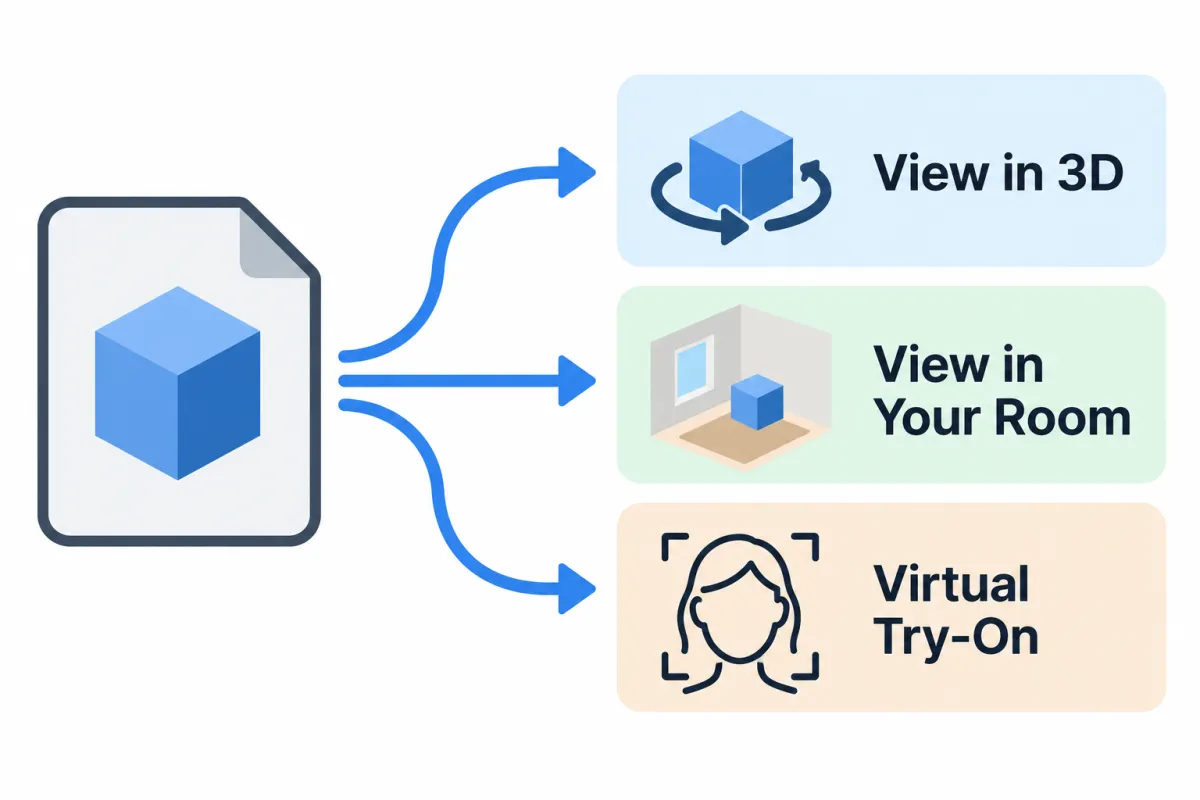 Diagram: one 3D model file can feed three shopper experiences (AI-generated illustration, not a screenshot).
Which Products Suit View in 3D and View in Your Room
The seller page gives the short version: View in 3D covers “shoes, eyewear, furniture, toys, electronics, and other products,” and View in Your Room covers “furniture, decor, and wall-mounted items.” The help article is more specific, and the exceptions are what you need to check before paying for a model.
View in 3D. Enabled for “any products with 3D assets that meet our format requirements,” including shoes (all shoe types), eyewear, home and furniture, beauty, baby products, sports, toys, pets, automotive and electronics. The exceptions are televisions, rugs, carpets, wall art and headphones.
View in Your Room. Enabled for “any products that can sit on a floor or table, or can be mounted to a vertical surface like a wall.” It does not support clothing, shoes, eyewear or ceiling-mounted products. The technical spec repeats the ceiling point: ceiling models “are not currently supported” in View in Your Room.
Virtual Try-On. Limited to sunglasses, eyewear, eyeglass frames, corrective eyeglasses, costume eyewear, blue-light-blocking glasses, computer glasses and safety glasses.
A practical way to read this: if a shopper’s main doubt is “will it fit and look right in my home,” View in Your Room answers it — a side table or a wall shelf. If the doubt is about shape and detail from every side, View in 3D is the fit — a sneaker or a toy. Wall art, rugs and headphones are excluded from View in 3D, so for those, your product photography and listing video carry the job.
Three Ways to Get an Amazon 3D Model
Amazon’s seller page names three routes. They differ in who builds the model and in what Amazon publicly documents about each.
| Route | Who builds the model | What Amazon says (checked 2026-10-04) | Publicly documented gaps |
|---|---|---|---|
| 1. Upload your own model | You or your 3D artist | Upload through Image manager “if your models meet our technical and quality requirements” | None major; full spec is public |
| 2. Scan with the Amazon Seller app | Amazon, from your scan | “We’ll use your scan to create a 3D model for your listing” | Eligibility, devices and turnaround not on public pages |
| 3. Hire a provider | A third-party 3D modeler | Use the “Imaging” category in the Service Provider Network and search for “3D Product Modeling” | Provider prices are set by providers, not listed by Amazon |
Route 1: Upload an existing model through Image manager
This is the route with the most public documentation (see the requirements and upload steps below). It suits brands that already have CAD or 3D files from product design, or that work with a 3D artist. The gate is the role check: the upload article says “You will only be able to upload 3D content for items that have a Brand Representative role assigned,” which in practice means your brand must be in Amazon Brand Registry with you holding that role.
Route 2: Scan with the Create 3D Models feature in the Seller app
Amazon’s seller page says: “You can also use the Create 3D Models feature in the Amazon Seller app to scan your products. We’ll use your scan to create a 3D model for your listing.” That is all the public page says. The linked help article did not return public text when checked on 2026-10-04, so this guide cannot confirm which phones are supported, whether the Brand Representative requirement also applies, or how long model creation takes. Amazon’s main Amazon Seller app product page, read the same day, does not mention 3D scanning at all. Check inside the app before planning around this route.
Route 3: Hire a 3D modeling provider through SPN
The seller page points to the “Imaging” category of the Service Provider Network, filtered for providers who specialize in “3D Product Modeling.” Amazon’s “no cost” statement covers adding 3D models to listings; it does not cover what a provider charges, and Amazon does not publish provider rates. Ask each provider to confirm in writing that delivery meets Amazon’s technical requirements and that they will handle retouches if the quality review sends the model back.
Amazon 3D Model Technical Requirements in Brief
The full spec runs long; these are the rules most likely to block a submission (all from Amazon’s technical requirements article, checked 2026-10-04).
| Area | Requirement |
|---|---|
| File format | .GLB (binary) or .glTF with supporting textures; Amazon calls GLB “our recommended format” |
| glTF export | Export as separate files (.glTF + .bin + textures); glTF with images embedded in the JSON is not accepted |
| Validation | The Khronos Group glTF-Validator tool “must be used to check that files meet technical requirements” |
| Geometry | No more than 200K triangles; no modifiers, animation keyframes, cameras or lights |
| Scale | Real-world scale — model dimensions match the assembled product; inaccurate dimensions “may cause delays” |
| Textures | .PNG or .JPG, square, power of two, between 2K (2,048 px) and 4K (4,096 px); double-sided textures not supported |
| Materials | PBR metal/roughness; base color, metallic and roughness maps required |
| Orientation | Up axis is positive Y; model front faces positive Z; floor items rest on the Y=0 plane |
| Content | “3D assets may not include any imagery of humans” |
| Eyewear | glTF must contain nodes named Frame, TempleR, TempleL, LensR, LensL |
The accuracy rule deserves weight. Amazon writes that “Models that do not accurately depict products as shown in the detail page images may be rejected through our quality assurance evaluation.” A model built from an older product version, or in a color that does not match the main images, is a likely rejection.
Amazon does not offer its own previewer. The article says glTF files can be dropped into the Khronos sample viewer “for an output nearly indistinguishable from ours,” which is a free way to check a provider’s delivery before you upload.
How to Upload a 3D Model and How Long Review Takes
Amazon’s upload article lists these steps (checked 2026-10-04). Have accurate product dimensions ready first; Amazon asks for them alongside the model.
- In Seller Central, go to Catalog and select Upload images.
- Open the Image manager tab.
- Search for the product by ASIN or SKU and select it.
- Check for the Registered brand owner icon; without the Brand Representative role you cannot upload 3D content.
- Under 3D models, select Upload 3D model.
- Upload your reference materials and the model, following the on-page instructions.
- Track the result on the Submission status tab.
On timing, Amazon says submissions “may require retouches before publication” and “Most submissions are reviewed within two weeks.” Plan launches around that window rather than expecting same-day display.
What It Costs
Amazon’s answer is direct: “There is no cost for adding 3D models and augmented reality to your Amazon product listings” (checked 2026-10-04). The real costs sit elsewhere:
- Seller account. Amazon recommends a Professional selling plan, which its page lists at $39.99/month plus selling fees.
- Brand Registry. Needed for the Brand Representative role that the Image manager upload requires.
- Model creation. Your own 3D work, or a provider’s fee if you use SPN. Amazon publishes no price range, and this guide does not quote one.
What Amazon’s Official Pages Do Not Specify
Several questions sellers ask have no public answer on Amazon’s pages as of 2026-10-04:
- Conversion or return impact. The seller page says Virtual Try-On “can increase customer engagement and reduce returns” and quotes a brand testimonial, but it publishes no figures. Third-party percentages circulate online; we do not repeat them because Amazon does not confirm them.
- App-scan details. Device support, eligibility and turnaround for Create 3D Models.
- Desktop display. Whether View in 3D now shows on desktop or mobile web; the help article still says support was “coming in 2024.”
- Model file size limits. The spec caps triangles and texture resolution but states no maximum file size.
Pre-Upload Checklist
- Product type is enabled for the experience you want and is not on an exceptions list.
- Your brand is in Brand Registry and you hold the Brand Representative role.
- Model is GLB, or glTF exported as separate .glTF + .bin + textures.
- glTF-Validator passes; model previewed in the Khronos sample viewer.
- Under 200K triangles; real-world scale; correct axis orientation.
- Textures are PNG/JPG, square, power of two, 2K to 4K.
- Colors and details match the current detail page images.
- No people in the asset; accurate product dimensions ready.
- Launch timing allows about two weeks for review.
Frequently Asked Questions
Does Amazon charge for View in 3D or View in Your Room?
No. Amazon states there is no cost for adding 3D models and augmented reality to product listings (checked 2026-10-04). You may still pay for creating the model and for the selling plan.
Do I need Brand Registry to add a 3D model on Amazon?
For the Image manager upload, yes in practice: Amazon says you can only upload 3D content for items with a Brand Representative role assigned. Amazon’s public pages do not state whether the Seller app scanning route has the same requirement.
What file format does Amazon accept for 3D models?
.GLB and .glTF, with supporting PNG or JPG textures. Amazon recommends GLB (checked 2026-10-04).
Can shoppers see View in 3D on desktop?
Amazon’s seller page describes the shopping app on iOS and Android. Its help article said desktop and mobile web support was “coming in 2024” and has not been updated to confirm it, so do not count on desktop display.
How long does Amazon take to approve a 3D model?
Amazon says most submissions are reviewed within two weeks, and some need retouches before publication.
Conclusion
Adding 3D and AR to an Amazon listing costs nothing in Amazon fees; the work is in producing a model that passes the spec and the accuracy review. If you hold the Brand Representative role and have or can commission a GLB file, the upload route is the best-documented path. Confirm your product type is enabled, validate the file before uploading, and allow two weeks. For the rest of the listing, see our Amazon listing optimization framework.